Threadify says "account already connected" or "access denied"? Here's the fix
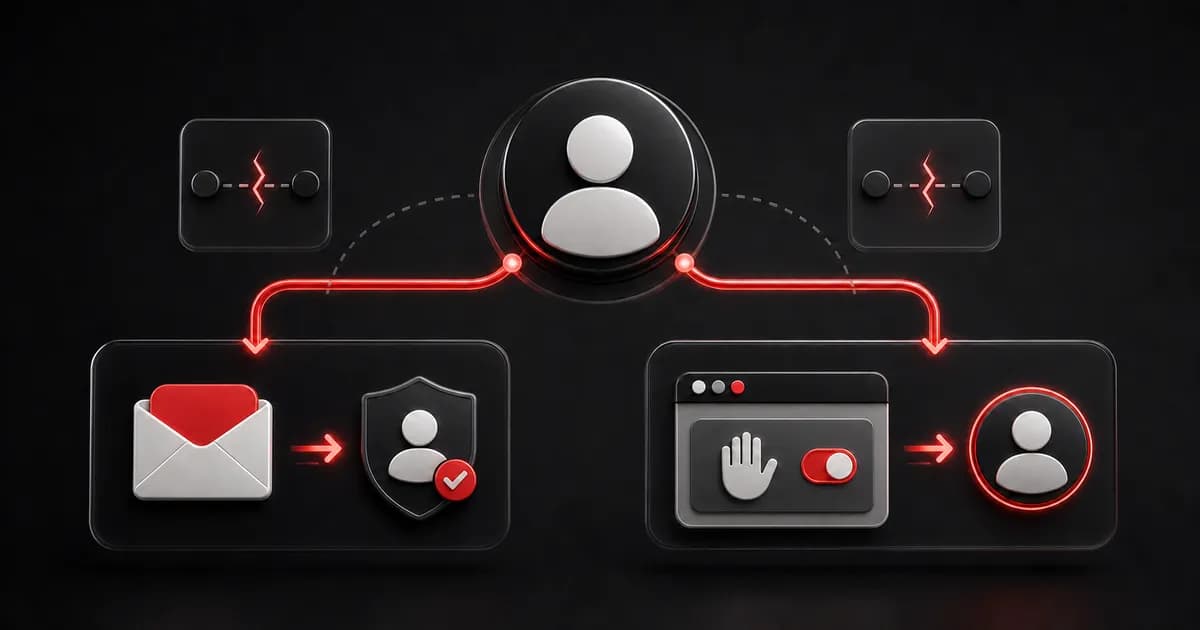
The two messages look like one connection problem. They are not. Use the matching route below to connect the right business profile without getting stuck clicking the same button.

The two messages look like one connection problem. They are not.
Use the matching route below to connect the right business profile without getting stuck clicking the same button.
The short answer
"This Threads account is already connected to another Threadify account" means that Threads profile is attributed to a different Threadify account. Request an admin release by emailing
support@threadify.appfrom the original Threadify email that first connected the profile."Access denied" means the Threads authorisation did not complete. Check the active profile on threads.net, return to Threadify, retry Connect, and complete the permission screen.
Different error. Different fix.
Fix "account already connected"
This does not mean your Threads profile is broken.
It means the profile is still attributed to another Threadify account. Clicking Connect again will not release it, and users cannot perform an account release themselves.
1. Use the original Threadify email
Find the email address used for the Threadify account that first connected the Threads profile.
The release request must be sent from that original email address so the Threadify team can verify the request against the account that owns the connection.
If a partner, assistant, or agency completed the first setup, check which Threadify login they used before sending anything.
2. Review scheduled work first
An admin release can cancel queued publishing jobs tied to that Threads connection. Review scheduled work before requesting the release so you know what may need to be rescheduled afterwards.
3. Email the release request
From the original Threadify email address, email support@threadify.app with:
the Threads handle you need released
the exact
account_already_connectedmessagethe Threadify email that should use the profile after release
a clear request for an admin account release.
Never include your password or an access token.
If you cannot access the original email, do not create extra Threadify accounts or claim ownership another way. Ask support what verification evidence is required.
4. Wait for release confirmation, then reconnect
Once a Threadify admin confirms the release:
Sign in to the Threadify account you intend to use.
Open threads.net in the same browser.
Confirm the correct business profile is active.
Try Threadify for free
Write better Threads in less time. Generate, refine, schedule—without the chaos.
Return to Threadify.
Select Connect and complete the permission screen.
The authorisation window sees the Threads profile active in that browser.
If it keeps choosing the wrong one, use Threadify's full logout-first guide for connecting multiple accounts.
Fix "access denied"
Threadify currently uses this message when the connection was cancelled and the authorisation did not finish.
It does not, by itself, prove your Threads profile was banned or connected to someone else.
Open threads.net in the same browser.
Check that the correct business profile is active.
Return to Threadify and select Connect Threads.
Continue through the Threads permission screen.
Approve the connection and wait to return to Threadify.
If the wrong profile appeared, switch profiles on threads.net before trying again.
If you complete the permission screen and the same message returns, contact Threadify support. Include the exact message and browser, but no credentials.
Four things not to do
Do not treat both messages as the same failure. An ownership conflict needs an admin release. A cancelled authorisation needs a clean retry.
Do not request a release before checking scheduled work. The admin release can affect queued publishing jobs.
Do not send the request from a new Threadify email. Use the email attached to the original account that first connected the profile.
Do not share credentials. Support needs the account details and error, not your password or token.
Check the connection before moving on
After Threads returns you to Threadify:
Open Settings > Connections.
Confirm the expected handle appears under Threads Connections.
Confirm it shows as connected.
Only then continue with the rest of your setup.
That check matters when your personal profile and service brand have similar names. You need the profile where client conversations happen, not the one your browser remembered.
The useful bit beyond the error
Connecting the right profile is not the outcome. It is the door.
For a service-business founder, the real job is noticing which replies contain buyer signal, turning that signal into a useful next step, and keeping control of what gets sent. Threadify puts those signals and follow-up drafts into a queue you can review.
No silent outreach. No guaranteed lead count. You keep final say.
Frequently asked questions
Who can release a Threads account from its existing Threadify account?
Only a Threadify admin can perform the account release. Request it by email from the original Threadify email that first connected the Threads profile.
What should the release email include?
Include the Threads handle, the exact error, the original Threadify email, the intended Threadify account, and a clear request for an admin release. Never include a password or token.
What if I cannot access the original Threadify email?
Ask support which ownership evidence is required. Do not create extra accounts or invent a workaround.
What does "access denied" mean in Threadify?
Threadify currently maps it to a cancelled or incomplete connection. Check the active profile on threads.net, retry Connect, and finish the permission screen.
Why does Threadify keep choosing the wrong Threads profile?
The authorisation window sees the profile active in your browser. Sign out on threads.net, enter the correct profile, then return to Threadify and connect.
Frequently Asked Questions
Who can release a Threads account from its existing Threadify account?+
Only a Threadify admin can perform the account release. Request it by email from the original Threadify email that first connected the Threads profile.
What should the release email include?+
Include the Threads handle, the exact error, the original Threadify email, the intended Threadify account, and a clear request for an admin release. Never include a password or token.
What if I cannot access the original Threadify email?+
Ask support which ownership evidence is required. Do not create extra accounts or invent a workaround.
What does "access denied" mean in Threadify?+
Threadify currently maps it to a cancelled or incomplete connection. Check the active profile on threads.net, retry Connect, and finish the permission screen.
Why does Threadify keep choosing the wrong Threads profile?+
The authorisation window sees the profile active in your browser. Sign out on threads.net, enter the correct profile, then return to Threadify and connect.
Try Threadify for free
Write better Threads in less time. Generate, refine, schedule—without the chaos.