
Find the Threads Posts That Still Work, Then Schedule Three More
Not sure if Threads is dead or your posts are? Have your AI agent check every post from this year against your own median, find what still gets pushed and schedule three drafts.

You post something you were proud of and it stalls at a few hundred views. Then another "Threads is dead" post turns up in your feed and the doubt sets in. Is the app burying everyone, or is it you? You scroll back through months of posts trying to remember which ones took off, and you still can't say what to write tomorrow. So you post the same kind of thing again and hope this one lands.
This workflow replaces that guessing with your own numbers. Your AI agent reads every Threads post you published this year, compares each one to your typical post and sorts them into patterns. You see which types flopped and which still break out, then get three drafts in your strongest pattern to edit, approve and schedule. It suits creators who already post on Threads regularly and want evidence from their own account about what to keep doing.
Is Threads dead, or is it just your posts?
Whether reach dropped for everyone is hard to prove from your feed. Which of your own posts still get pushed out is something you can check. The fairest test compares each post to your own median: the middle point, where half your posts did better and half did worse. A post that reaches three times your median counts as a breakout. For the thinking behind using your own baseline, read how to set your own Threads baseline. For the general signals behind reach, see what drives Threads reach in 2026.
What you need before you start
You need a Threadify account with your Threads account connected. Agent connections come with every paid plan. You also need an agent app: Claude, ChatGPT and Gemini can all connect to Threadify. The example run used ChatGPT, and any agent app works.
How to find which Threads posts still work and schedule three more (8 steps)
Step 1: Let your agent see your Threads data
Connect once and your agent can read your posts now and schedule for you later. In Threadify, open the Agent tab, choose your agent app under Set up a client and follow the numbered steps on its card. For Claude, copy the link on the card, open Settings → Connectors → Add custom connector, name it Threadify and paste the link. Claude then opens your browser, where you log in and click Allow. Other apps have their own guide on the same tab. The walkthrough on finding your niche with your AI agent covers connecting and installing in more detail.
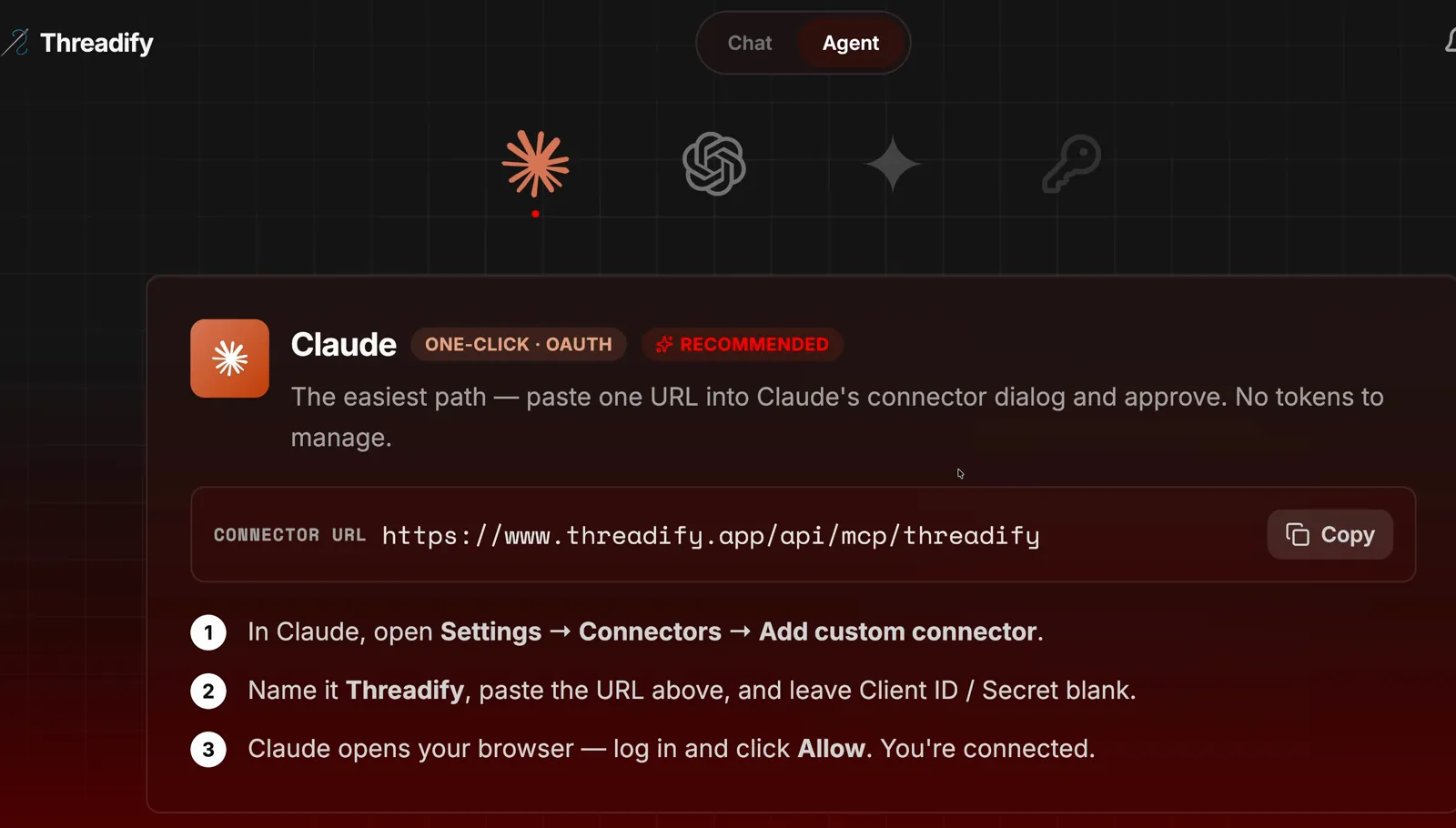
The Agent tab with the Claude card. Notice the link to copy and the three numbered steps, with no tokens to manage.
Step 2: Install the free workflows with one message
One message puts the free Threadify workflows in your agent and starts the check. Open a new chat in your agent app and paste this:
https://github.com/lennoxsaint/Threadify-workflows install this, run get set up, then run what's working on my threads
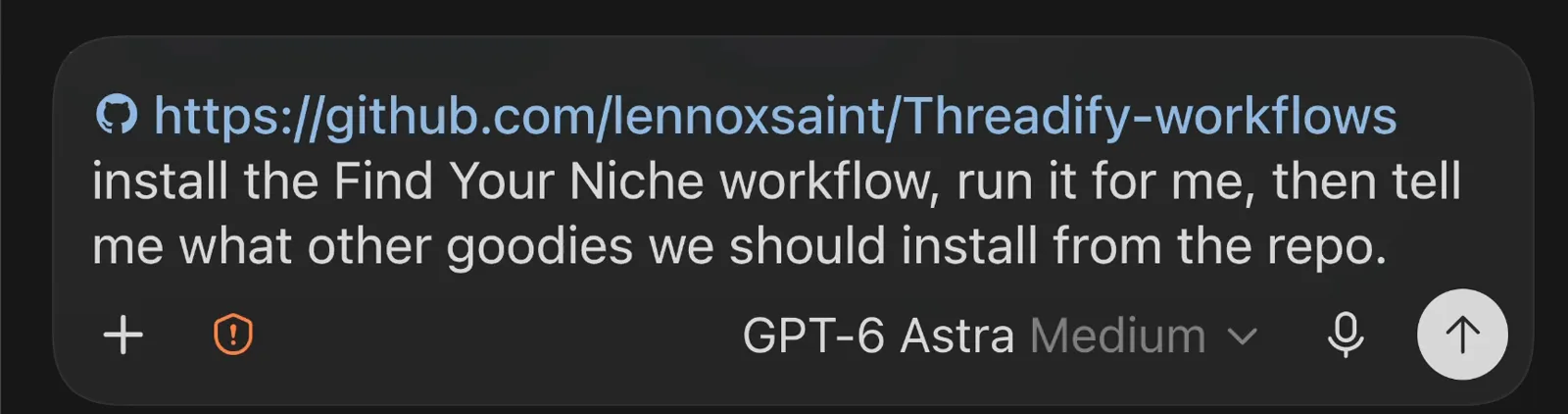
An install message pasted into the agent. It names a different workflow, but it has the same shape: the workflows link, then a plain request. Yours ends with "what's working".
Step 3: Ask for a full-year check against your median
This request tells the agent to look at every post you published this year. If What's Working doesn't start by itself after the install, type the request shown in the screenshot below. It names the workflow and asks for every post this year, checked against your median. The agent first confirms that Threadify is connected and shows your handle. Then it reads your whole year, so expect a wait on a busy account.
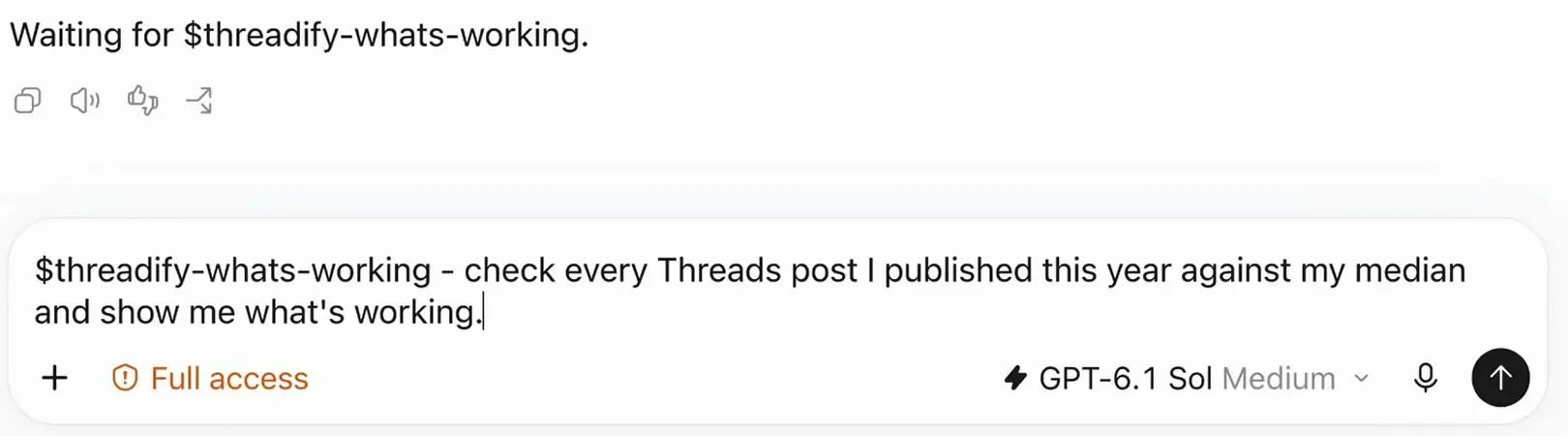
The full What's Working request in the agent's message box. Type these words exactly as shown.
Try Threadify for free
Write better Threads in less time. Generate, refine, schedule—without the chaos.
Step 4: See your whole year against your own median
Here you see how your posts actually spread out, without relying on memory. A What's working results page opens with how many posts were read and counted, your median, your best post, and the share of posts that never broke out (under 3x your median) against the share that's alive (3x or more). A chart then plots every post as a dot against your median line. Posts under 3 days old are left out because they're still collecting views.
In the example run, the agent read 1,921 posts from 1 January to 13 October 2026 and counted 1,891 (30 were too new). The median was 1,223 views, and the best post reached 719,150 views, 588x that median. 76% of posts never broke out and 24% were alive. When you've taken in your own numbers, reply:
next
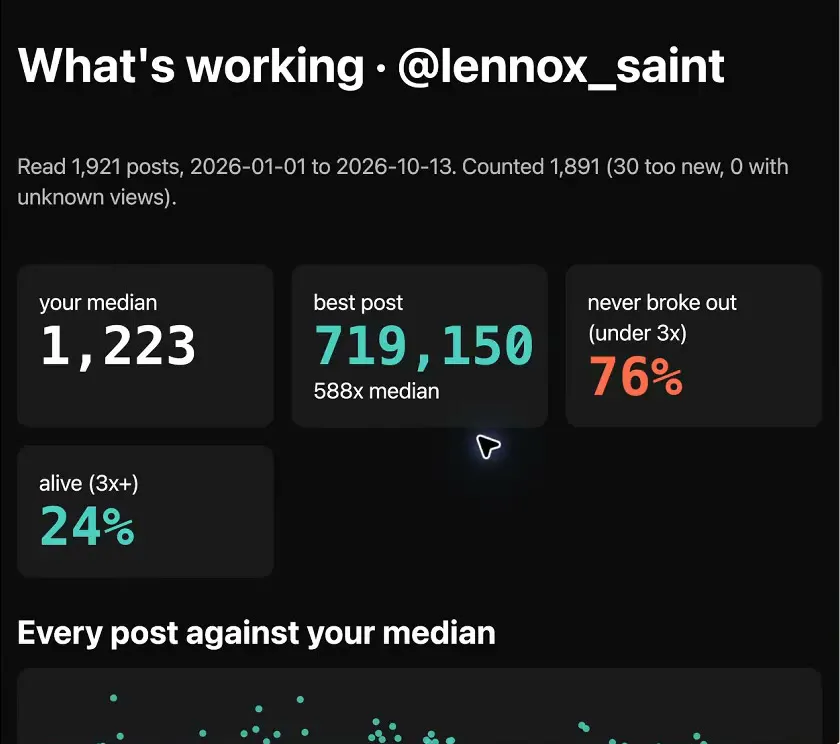
The What's working page for the example account. Notice the counted posts, the median, the best post and the 76% / 24% split between never broke out and alive.
Step 5: Let the agent group your posts into patterns
A pattern tells you what kind of post works, which is more useful than knowing that one post did well. The agent sorts every counted post into groups by type and takes a close look at your best and worst posts. In the example run, it grouped all 1,891 counted posts into 10 patterns and left none unlabelled, and every group had at least 5 posts. It also checked the top 30 and bottom 30 posts, plus every post that reached 3x the median. To see how each pattern performed, reply:
next
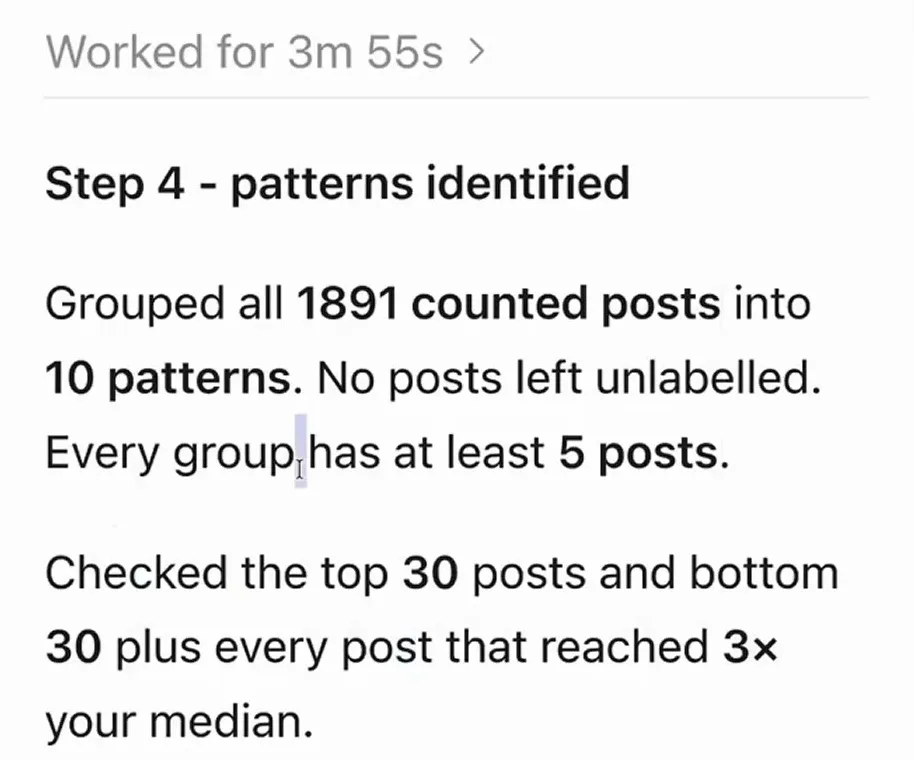
The patterns step. Notice that every counted post is grouped, no post is left unlabelled and each group has at least 5 posts.
Step 6: See which post types flopped, then ask for three drafts
This is where you find out what to stop doing and what to repeat. The report's What Threads killed section lists your weakest patterns, each with its median views, how many posts it covers and what share stayed alive. Then the report names your strongest pattern, the one Threads still pushes.
In the example run, the weakest patterns were product promo (median 511 views across 66 posts, 5% alive), question and connection (960 across 145 posts, 22% alive) and how-to list (1,099 across 457 posts, 22% alive). The strongest was AI research reveal, with a median of 6,493 views, about 5x the overall median. 60% of those posts reached the breakout line, yet it was the account's rarest post type, with only 37 posts. Your own strongest pattern could also be one you rarely use. When you're ready for three drafts in your strongest pattern, reply:
next
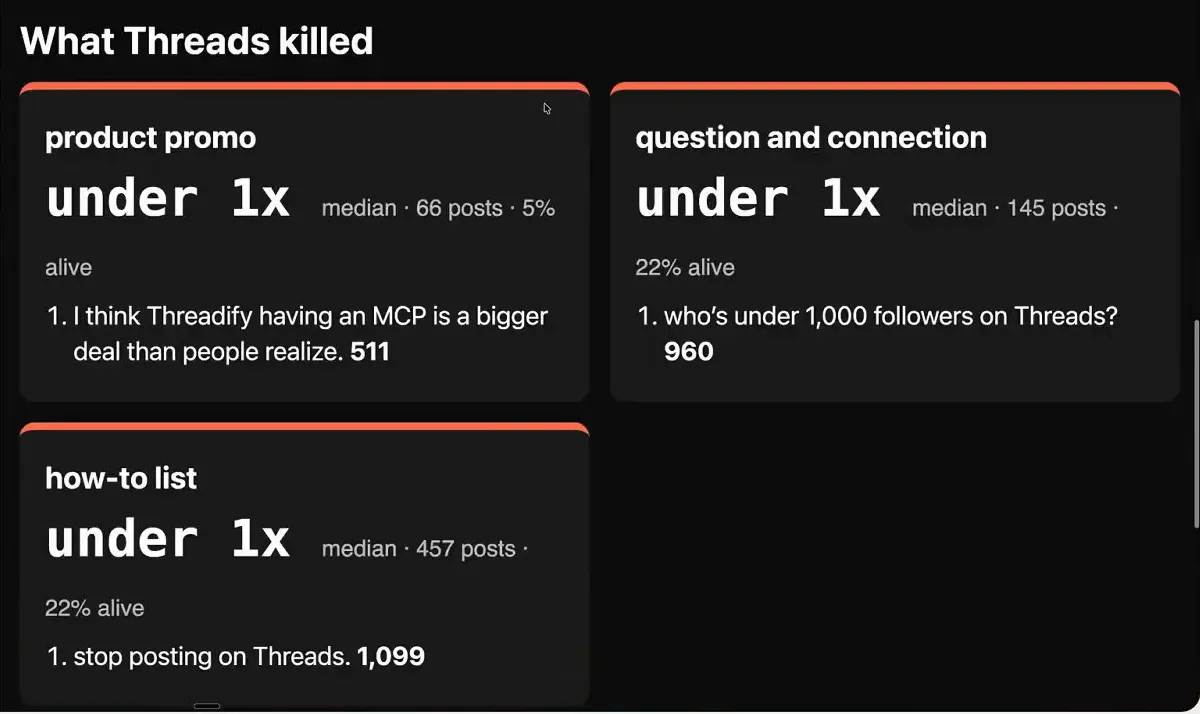
The What Threads killed section of the example report. Notice the three weakest patterns, each under 1x the median, with their post counts and share alive.
Step 7: Edit the three drafts until they sound like you
Editing here means the posts go out in your words. Your three drafts open on an Edit your 3 posts page. Type straight into each post. Your changes save on your computer. Auto Plugs (the automatic call-to-action reply Threadify can add under a post, explained here) are skipped, so these three drafts go out without one. In the example run, the drafts came out a little long, so they were trimmed and reformatted before approval.
Check that each hook fits the pattern as well as the format. A list revealing what a big research job found is a different post from a "here's how to grow on Threads" list, even though both are lists. When you're happy with all three, click Done editing.
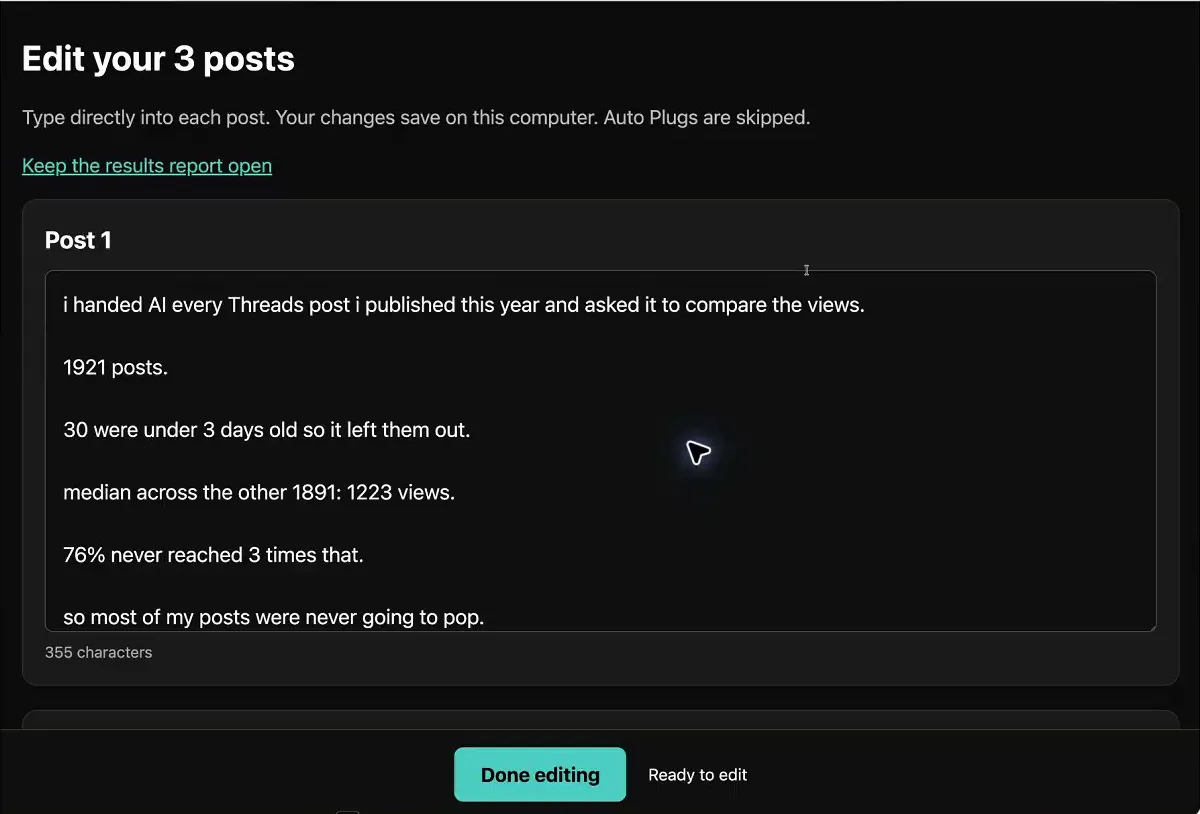
The Edit your 3 posts page. Notice the note that changes save on this computer and Auto Plugs are skipped, and the Done editing button at the bottom.
Step 8: Approve the posting times and schedule all three
One reply turns the drafts into scheduled posts. Your agent proposes a time for each, based on your best times to post and what's already on your Threadify calendar. Check the times, then reply:
yes
The agent schedules the posts and reads them back to confirm. In the example run, the read-back said "All 3 posts match your approved text and Perth times", with posts set for 15 October at 8:00 PM, 16 October at 7:00 AM and 17 October at 10:30 AM. Auto Plugs were off and nothing was published straight away. Open your calendar in Threadify afterwards to see all three in place.
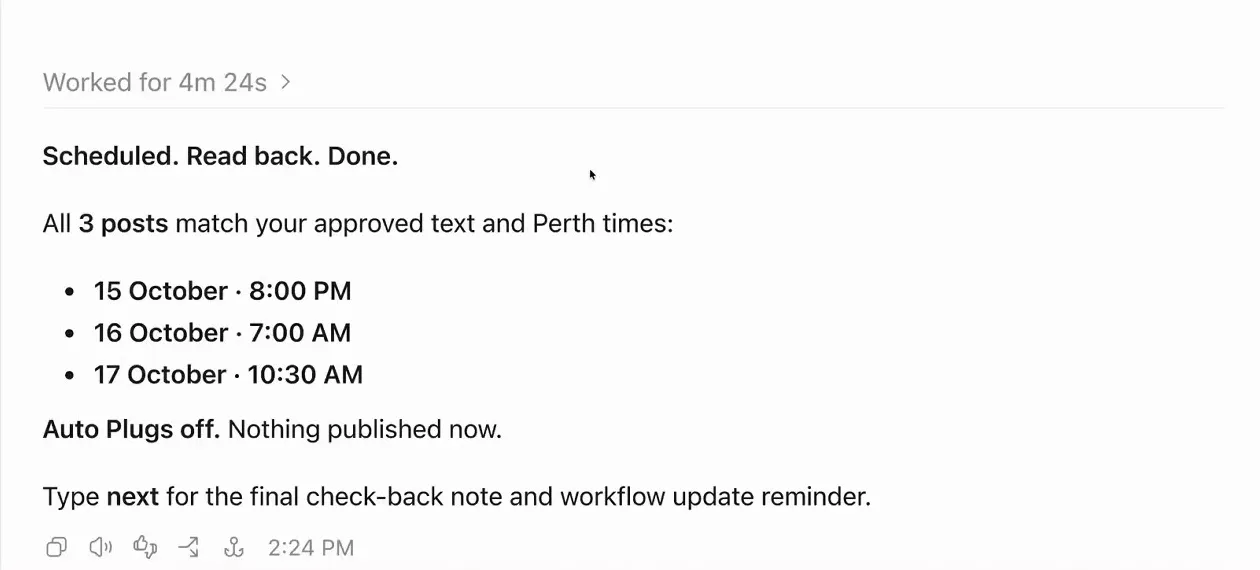
The agent's read-back after scheduling. Notice the three dates and times, Auto Plugs off and "Nothing published now".
What to expect when you run it on your own account
- Every figure above comes from one account in the example run. Your median, your patterns and your best post type will be your own, which is why the workflow compares you to you.
- Big accounts take a while. The full read in the example run took six minutes and 50 seconds for 1,921 posts, so let it run.
- Your newest posts won't count yet. Anything under 3 days old is left out because it's still collecting views.
- The reasons given for the top pattern are guesses. The example run's explanation was a trending topic, a famous name, clear wording and a clear promise in the hook. Treat those as ideas to test.
- You stay in control. Read and edit every draft before you approve it, and nothing is scheduled until you reply yes.
- The example times are Perth times. Your agent schedules on your local clock, and you can check or change its time zone under Your connections on the Agent tab. Still check each proposed time against your own calendar.
- If you've only posted a few times this year, there may not be enough posts to compare patterns fairly. A simple weekly check of what to repeat may suit you better for now.
Find your strongest post pattern this week
Whatever is happening to reach across Threads, you can find out which of your posts still travel and put three more in that pattern on your calendar. Open Threadify to connect your Threads account and your agent app from the Agent tab, then paste the install message from Step 2 and let this year's posts show you what to write next.
Frequently Asked Questions
Do I need ChatGPT to run the What's Working workflow?+
No. Any agent app that connects to Threadify works, including Claude, ChatGPT and Gemini. The example run used ChatGPT. Connect yours from the Agent tab in Threadify, then paste the install message.
Will my AI agent publish anything without asking me?+
No. You edit the three drafts first, and the agent only schedules them after you reply yes. In the example run, the read-back confirmed that nothing was published straight away.
Why compare posts to my median instead of my average views?+
One viral post can drag an average far above what a normal post gets. The median is the middle point, where half your posts did better and half did worse, so it shows what a typical post really earns. That makes it a fairer line for spotting breakouts.
Why are my most recent Threads posts missing from the report?+
Posts under 3 days old are left out of the comparison because they're still collecting views. Counting them early would make them look weaker than they are.
How long does the full-year check take?+
It depends on how much you post. In the example run, reading 1,921 posts took six minutes and 50 seconds, so a busy account means a wait before the results appear.
Try Threadify for free
Write better Threads in less time. Generate, refine, schedule—without the chaos.