Find Your Threads Niche From Posts You've Already Written
Your Threads posts already show what you're known for. Connect your AI agent, install one free workflow and get your niche, a positioning line and a private ideal-client report.

You've been posting on Threads for months. Then someone replies, "So what do you actually help people with?" You type three different answers and delete every one. Each morning starts with a fresh guess: a productivity tip one day, a hot take the next. A throwaway joke takes off and you wonder whether you should chase it. Meanwhile the people who could pay you scroll straight past, because nothing on your profile tells them you're the person for their problem.
Your post history already holds the answer: which posts get shared, and what people keep coming back to ask you. You just don't have a spare evening to read hundreds of posts and piece it together.
So hand that reading to your AI agent. Connect it to Threadify, run the free Find Your Niche workflow on your own posts, and you get back a named niche, a one-line positioning statement, a profile of your ideal client, and a list of what to post more of and what to drop.
What you need before you start
A Threadify account. You can start on the 7-day free trial, which asks for a card but charges nothing up front.
Your Threads account connected to Threadify. That's how your posts and analytics get in.
An AI agent you already use, such as Claude. Agent connections come with every paid plan.
Some posting history. The workflow reads only what you've already posted, so the more you've shared, the more it has to go on.
How to find your niche on Threads from your own posts (7 steps)
Step 1: Give your AI agent access to your Threads data
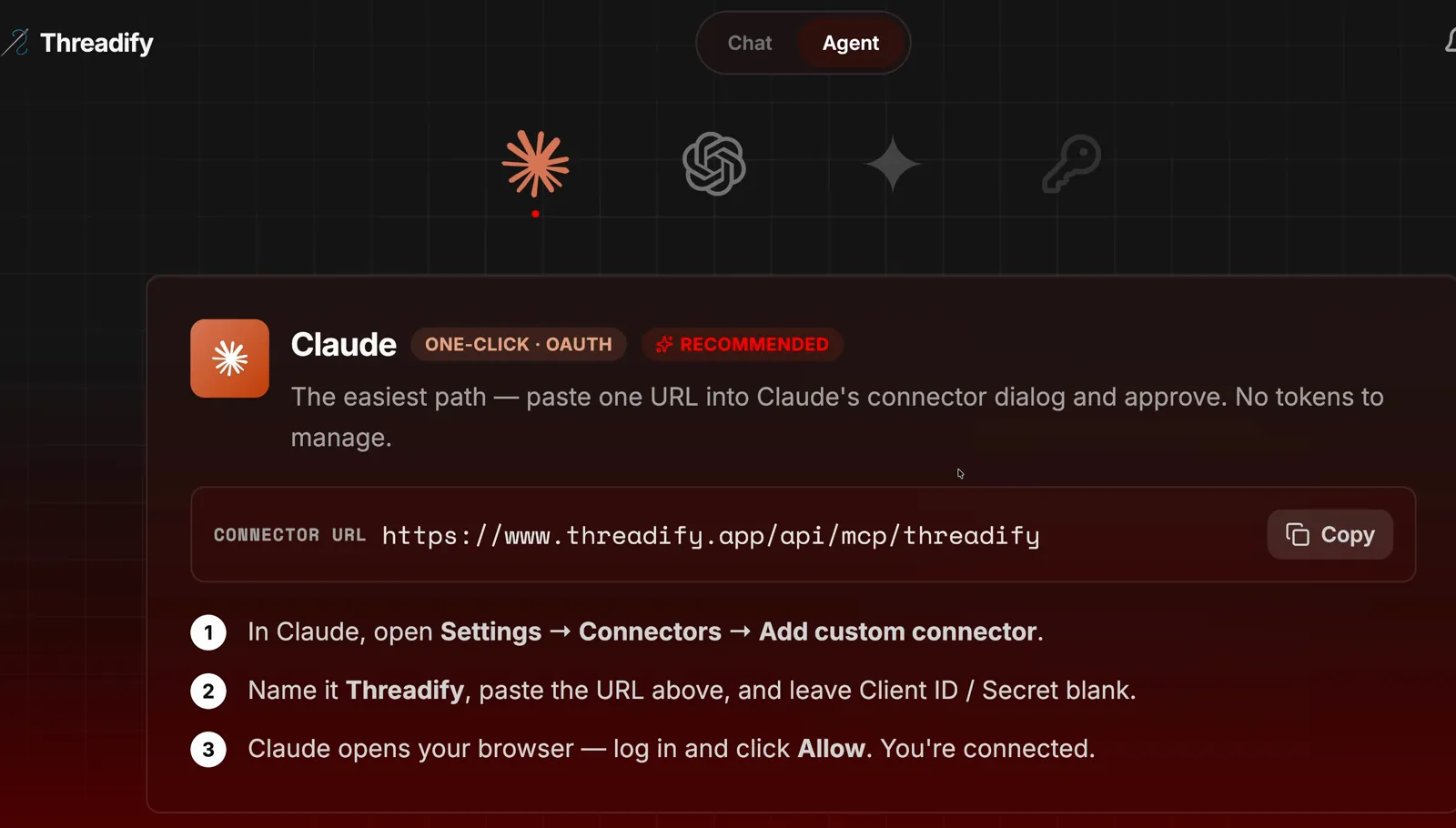
Once your agent is connected, it can read your Threads analytics through Threadify, which is what lets it study your posts for you. In Threadify, flip the switch at the top of the composer from Chat to Agent, then scroll down to the setup instructions for your agent. For Claude, the recommended option:
Click Copy next to the CONNECTOR URL.
In Claude, open Settings → Connectors → Add custom connector.
Name it Threadify, paste the address and leave Client ID / Secret blank.
When your browser opens, log in and click Allow.
Other agents, such as Gemini, have their own instructions on the same tab. For a fuller walkthrough, see our guide to connecting Claude to Threads with Threadify.
Try Threadify for free
Write better Threads in less time. Generate, refine, schedule—without the chaos.
Step 2: Add the Find Your Niche workflow to your agent
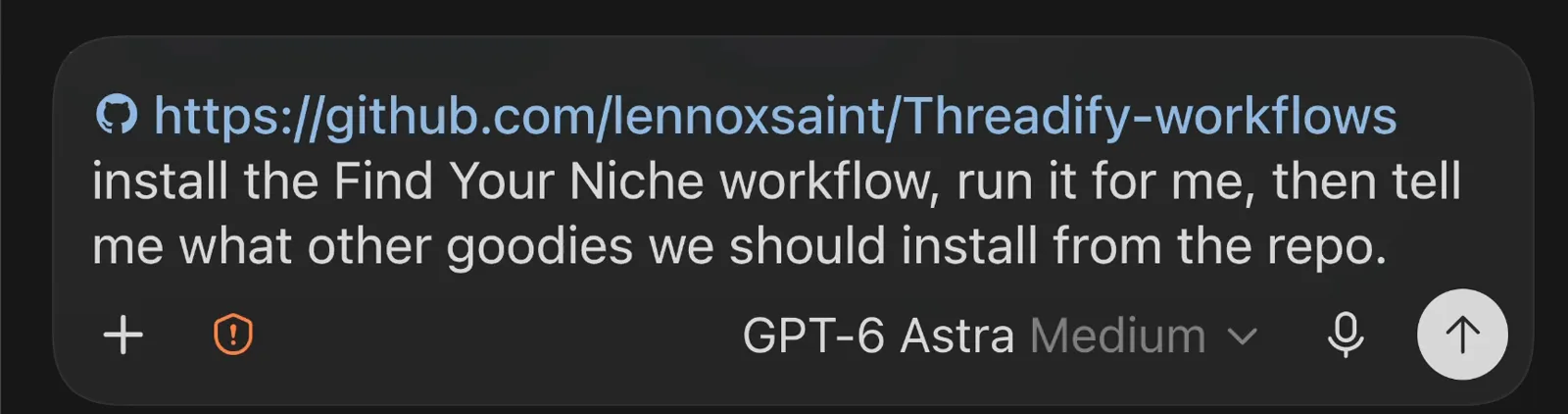
This gives your agent the instructions for turning your posts into a niche report, so you don't have to write them yourself. Start a new chat in your agent and paste this whole message:
https://github.com/lennoxsaint/Threadify-workflows install the Find Your Niche workflow, run it for me, then tell me what other goodies we should install from the repo.
The link at the start points your agent to Threadify's free workflows. The rest tells it which one to install and run, and asks what else is worth adding. If you've used the workflow that finds your next post in your Threads comments, the install works the same way.
Step 3: Ask your agent to find your niche
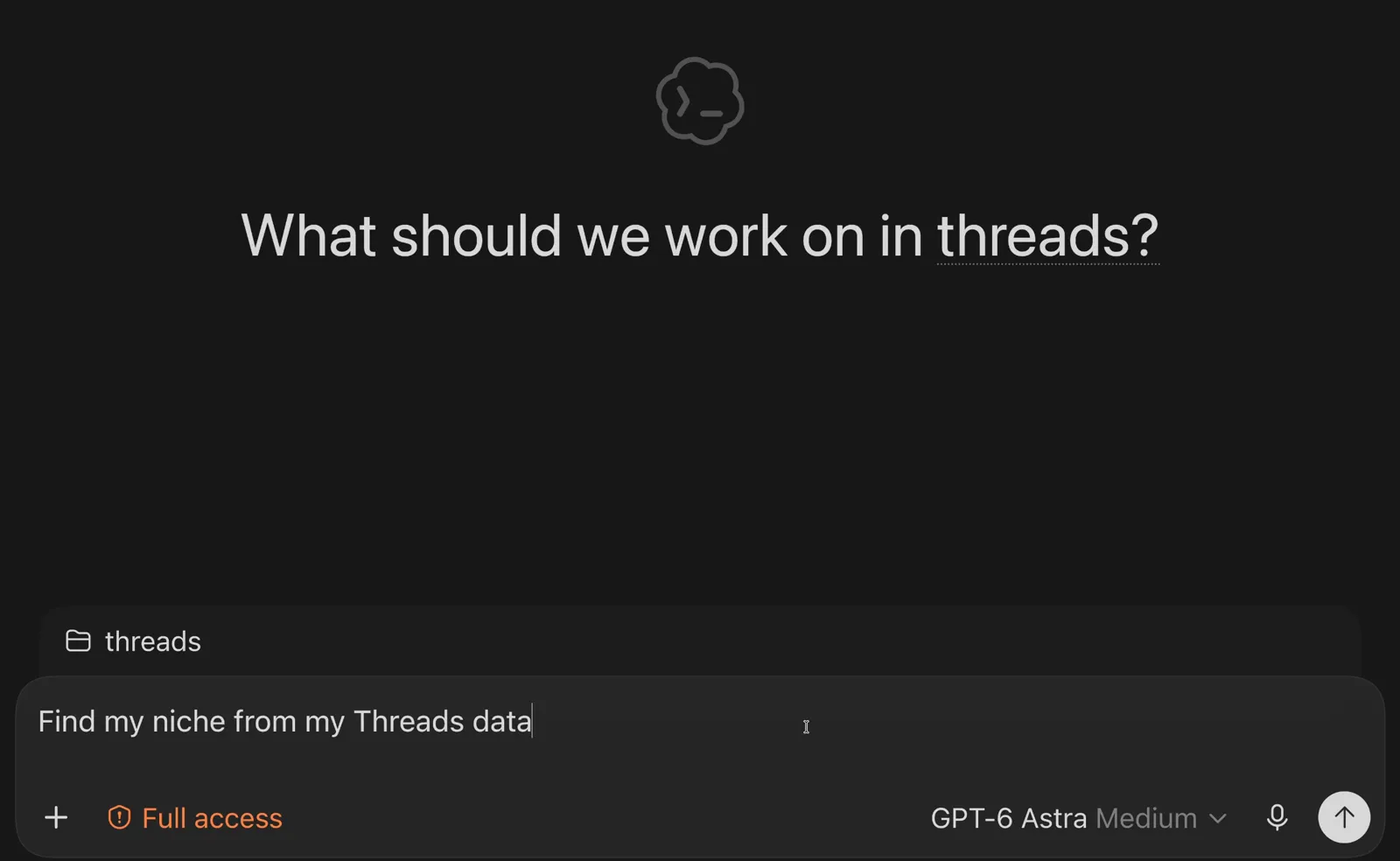
You don't need to explain your business or paste in any posts. In the chat box, type:
Find my niche from my Threads data
If your agent replies with general advice instead of running the workflow, follow up with:
use the threadify workflows niche finder skill
The example run in these screenshots needed this nudge too, so don't worry if yours does.
Step 4: Let your agent read your posts and replies
This is the reading that would otherwise eat your evening. Through Threadify, the agent pulls your recent posts and your all-time top performers, then looks through the conversations under them for the clearest signal about who you help.
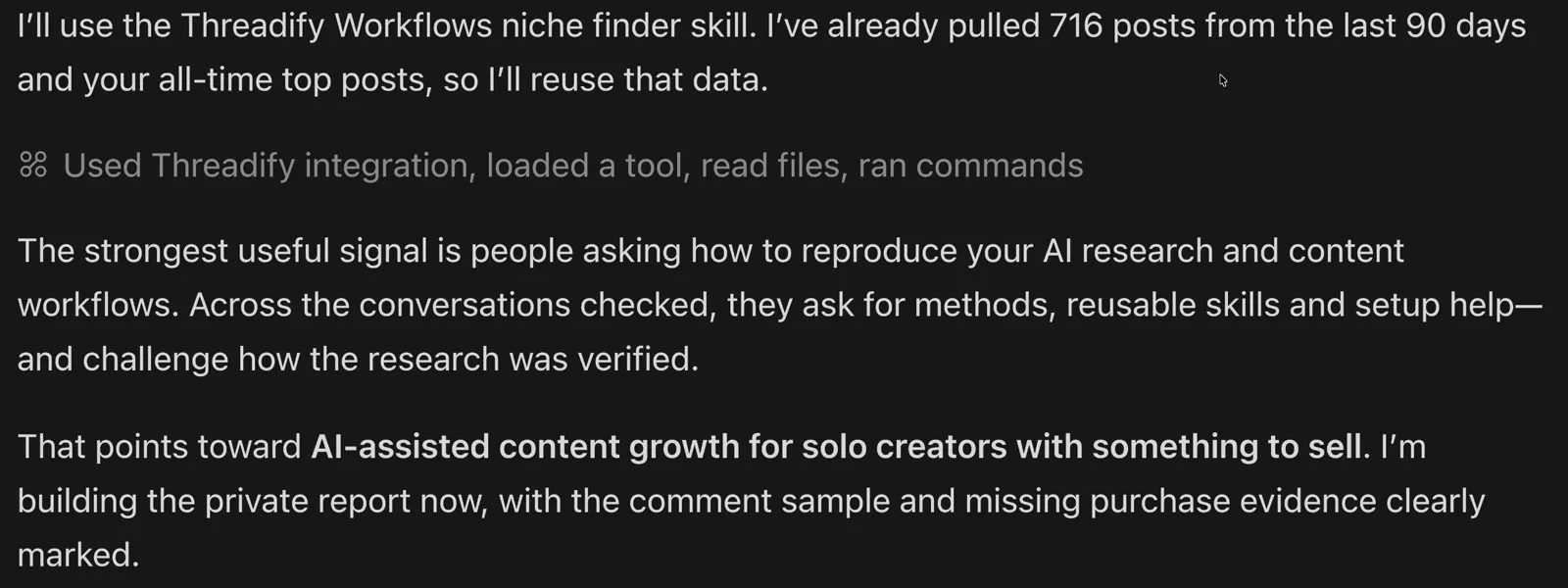
In the example run shown here, the agent reused 716 posts from the last 90 days plus the account's all-time top posts. The strongest signal it found was people asking how to reproduce the account's AI research and content workflows. They wanted methods, reusable skills and setup help, and some challenged how the research had been checked. The agent also said it would clearly mark where purchase evidence was missing.
Step 5: Read your niche and one-line positioning statement
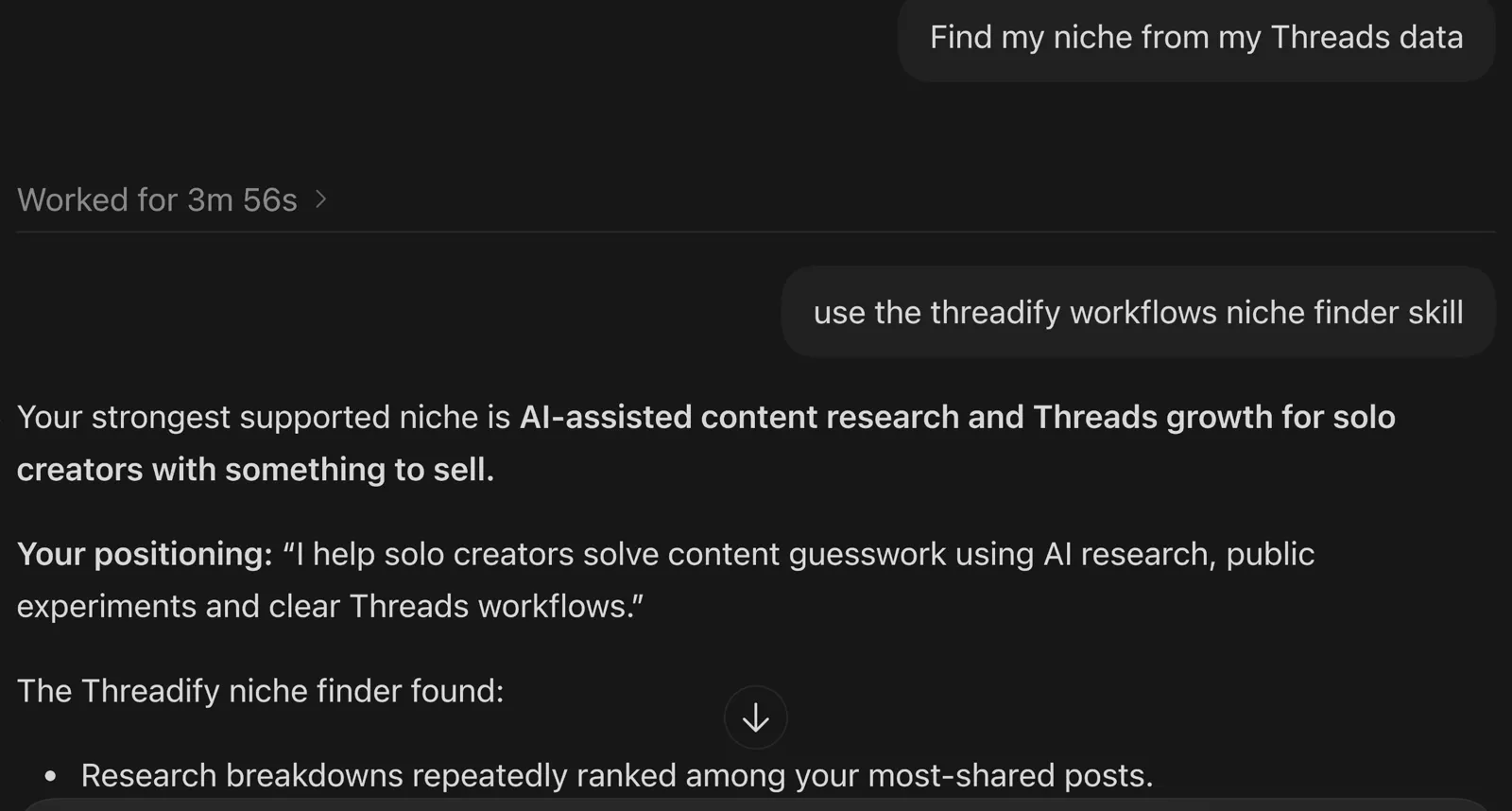
Here's the payoff: a niche you can say out loud and a sentence you could put in your bio. In the example, the first request ran for 3m 56s, and after the nudge the agent named the strongest supported niche as "AI-assisted content research and Threads growth for solo creators with something to sell."
It also wrote a one-line positioning statement with a simple shape: who it's for (solo creators), the problem it solves (content guesswork) and the method (AI research, public experiments and clear Threads workflows). Under it, the agent listed its evidence, starting with research breakdowns that kept ranking among the account's most-shared posts.
How long yours takes and what it finds depend on how much you've posted and what your audience says back. Read your statement aloud. If it sounds like you on a good day, you've got something to test.
Step 6: Open your private ideal-client report
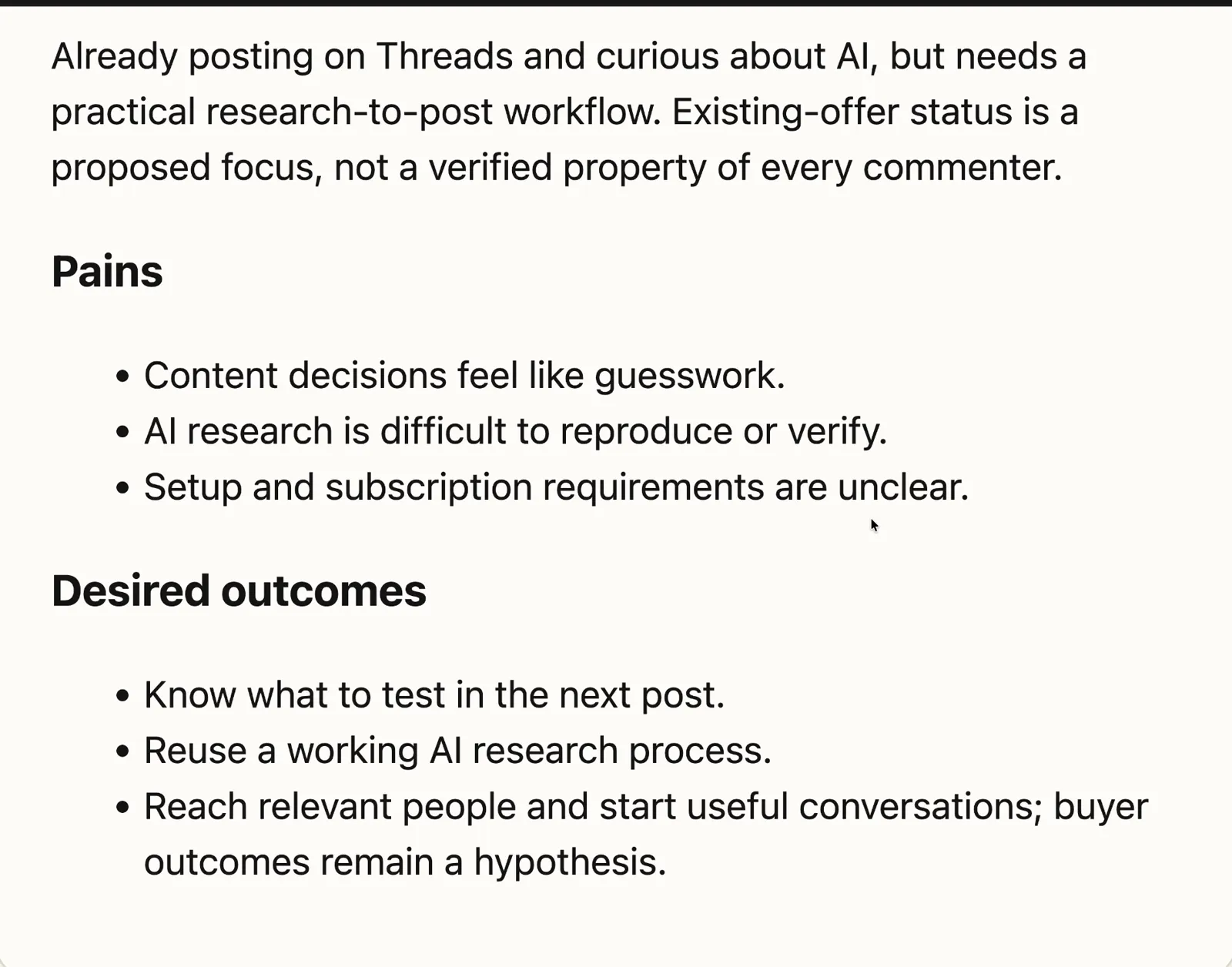
A one-line statement won't tell you what to write next, so the agent also builds a private one-page report. It covers who your ideal client is, the pains they mention and the outcomes they want, plus paraphrased wording you can reuse in posts, their objections and your three content pillars.
In the example report, one of the pains was "Content decisions feel like guesswork." The report also labels what it can't confirm. This one called the existing-offer part of the profile "a proposed focus, not a verified property of every commenter."
Step 7: Decide what to post more of and less of
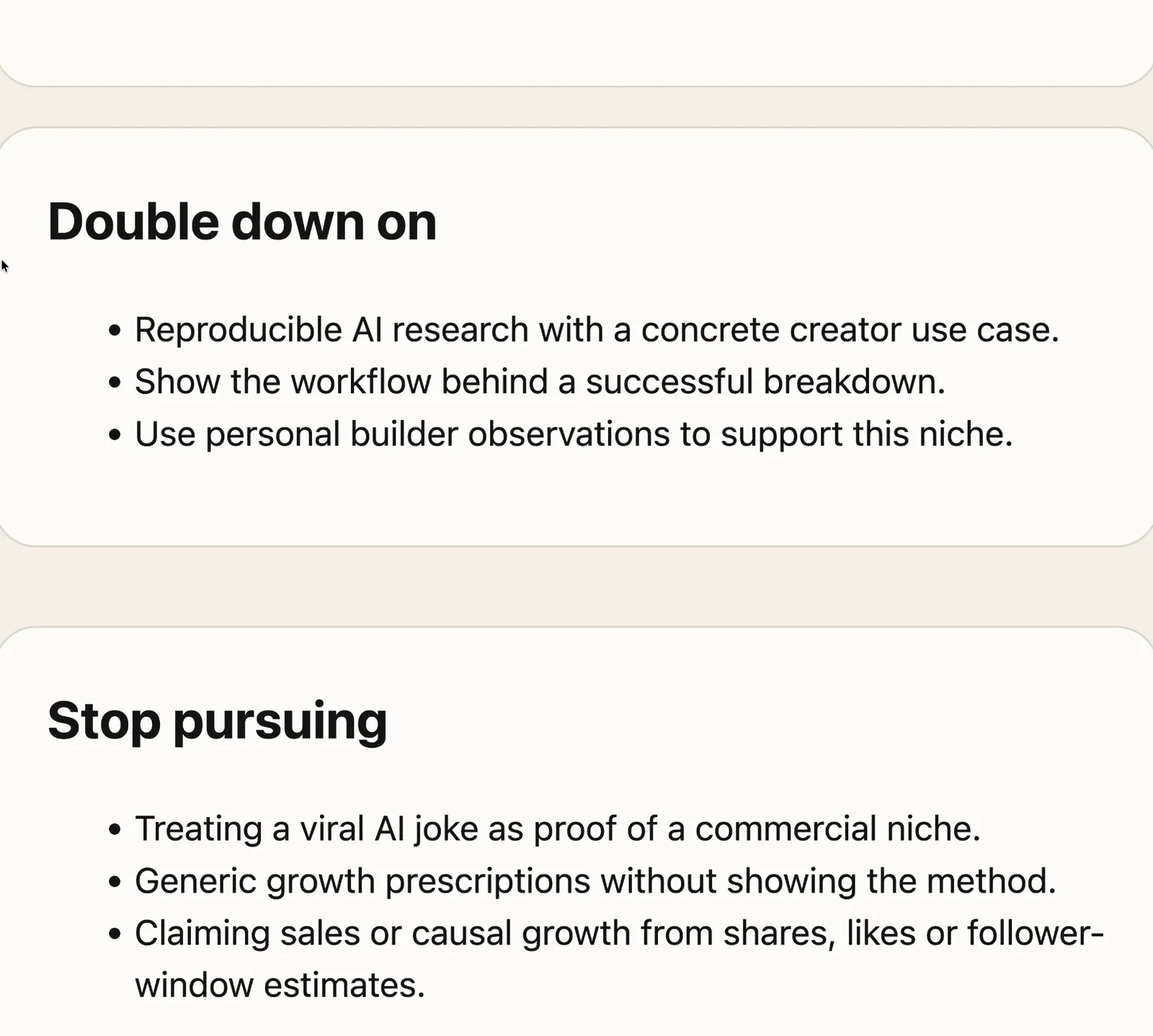
This is where the report turns into next week's posting decisions. It ends with a Double down on list and a Stop pursuing list, with the proof behind each recommendation. The example report said to double down on "reproducible AI research with a concrete creator use case" and to stop "treating a viral AI joke as proof of a commercial niche."
Pick one item from each list and plan your next few posts around them. If you'd also like a quick weekly check you can do by hand, here's how to decide which Threads posts to repeat.
What to expect from your first run
Each part of the report ties back to your own posts and the conversations under them, and the report says plainly what it can't verify. Treat the niche it names as a starting idea to test in your next few posts. Once you've settled on one, this guide to growing a niche audience on Threads without burning out covers what comes next.
What your niche report can't tell you
It only knows what you've already posted. If you've posted about a bit of everything, the report reflects that mix. If you've barely posted, the evidence will be thin. And if you're moving into a topic you've never written about, your history can't point you there.
Engagement isn't buying. The report warns that engagement doesn't prove purchase intent, so someone who comments "I wish I knew how to do this" might never buy from you. To tell interest apart from real buying signals in your replies, try this red, amber and green check for buyer intent.
Your ideal client and what they'd pay for are still ideas to test in real conversations. The example report said as much, noting that buyer outcomes "remain a hypothesis."
Find your Threads niche this week
Your posts have been collecting clues about your niche all along. Open Threadify, connect your Threads account and your AI agent, then paste the install message from Step 2. Your agent reads those posts for you and hands back a niche, a positioning line and a list of what to post next.
Frequently Asked Questions
Do I need to be technical to find my niche this way?+
No. You copy one address into your AI agent's settings, then paste two short messages into a chat. The agent does the installing and the reading. If anything looks unfamiliar, the Agent tab in Threadify has on-screen instructions for each agent.
Which AI agents can I connect to Threadify?+
Claude is the recommended option, with a one-click setup on the Agent tab. The same tab has setup instructions for other agents, such as Gemini. Agent connections come with every paid plan.
Is the Find Your Niche workflow free?+
Yes, the workflow itself is free. You install it by pasting the message in Step 2 into your agent. Your agent reads your posts through a paid Threadify plan, and you can start with the 7-day free trial.
Will the agent post anything to my Threads account?+
The Find Your Niche workflow builds a private report for you to read. If you ask your agent to post through Threadify, it starts in reviewed mode and reads back the exact text and time before it publishes, schedules or replies.
Try Threadify for free
Write better Threads in less time. Generate, refine, schedule—without the chaos.