How to Schedule One Video to YouTube, Threads and X With One Yes
Uploading one video means doing the same job on YouTube, then Threads, then X. Hand the file to your AI agent, answer two questions, say yes once, and it's scheduled on all three.

You finish a new Short and you're proud of it. Then the second job starts. You upload it to YouTube and write the title, the description and the tags, pick a thumbnail and set the schedule. Then you open Threads and do most of it again. Then you open X and do it a third time. By the last upload you're pasting a caption you've already fixed twice, and some nights your Short only reaches one platform because you ran out of evening.
This workflow takes the repeat work off your plate. You give your AI agent one file and answer two questions only you can answer. Then you read one approval card, reply yes, and your Short is scheduled on YouTube, Threads and X.
It's for creators who already make short videos and want each one on all three platforms without uploading it three times. Want to turn someone else's YouTube upload into a Threads post instead? This walkthrough covers that job. If you mostly share text, see how to write a separate version of each post for X and LinkedIn.
What you need before you start
- A Threadify account with Threads and X connected. Posting to X needs the Founder plan or above.
- An AI agent app connected to Threadify. Claude Code, the Claude desktop app and the ChatGPT desktop app all work. In Threadify, open the Agent tab, scroll to the bottom and follow the steps for your app. This guide walks you through connecting Claude.
- One finished video file. The example run used a 56-second vertical MP4, a YouTube Short.
How to schedule one video to YouTube, Threads and X (7 steps)
Step 1: Put YouTube next to your Threads and X accounts
Connecting YouTube lets your agent reach all three platforms through Threadify. Find YouTube in your Threadify Connected accounts list, click its Connect button and follow the prompts. You only do this once. When it's connected, YouTube shows your handle with a tick, the same as Threads and X. LinkedIn sits in the same list if you want it later.
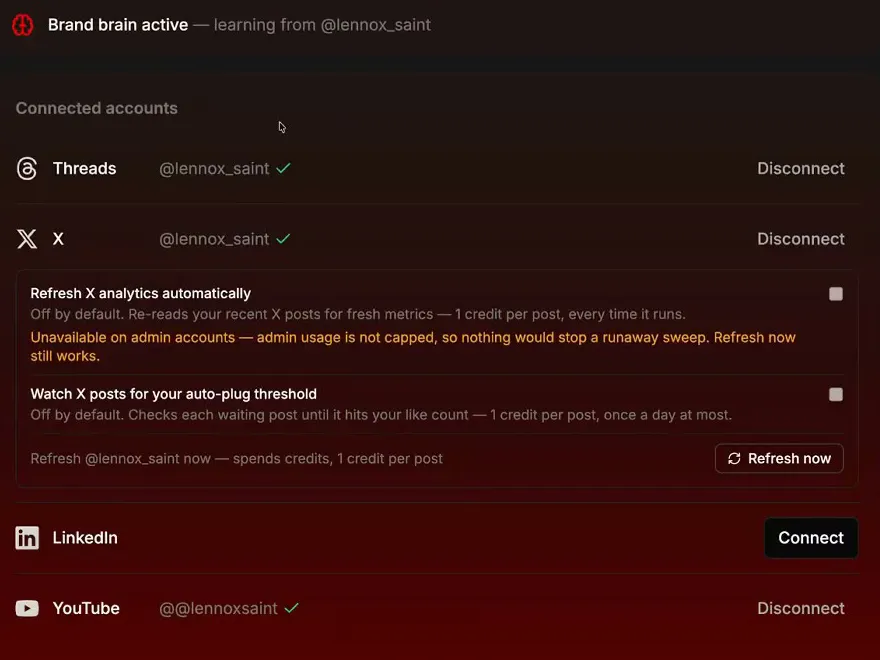
Threads, X and YouTube each show a tick and a Disconnect button under Connected accounts. LinkedIn still shows Connect.
Step 2: Install the free workflow with one message
One message installs the free workflow for you. Open a new chat in your agent app. Paste the free Threadify workflows link (it's the one in the screenshot below), then type the install line after it, exactly as the screenshot shows. Then send it. That one message tells the agent to install the workflows, run Get Set Up and then run Publish Everywhere.

The whole install message: the free workflows link, then "install this and run get set up and publish everywhere".
Step 3: Give your agent one file and let it check it
Straight away, you find out whether the file itself is fine: its size, length, shape and format. To start a run, type the workflow's command, drag your file into the prompt box and press enter:
/threadify-publish-everywhere
The agent first confirms which brand, and which YouTube, Threads and X accounts, it's working with. Then it checks your file. In the example run, it read the file as 95.05 MB, 56.2 seconds long, 1080 x 1920 (vertical) and an MP4, so it could go ahead. When it asks, type next.

Try Threadify for free
Write better Threads in less time. Generate, refine, schedule—without the chaos.
The file check: size, length, vertical format and MP4, then "Type next and I'll work out where it can go."
Step 4: See which platforms your Short fits
You don't have to guess whether a file is too long for a platform. The agent puts each platform in a table with its length limit, a decision and the reason. In the example run, the table listed YouTube at 12 hours, Threads at 5 minutes and X at 20 minutes. The 56-second, 95.05 MB file fit all three, so each one was marked Kept.
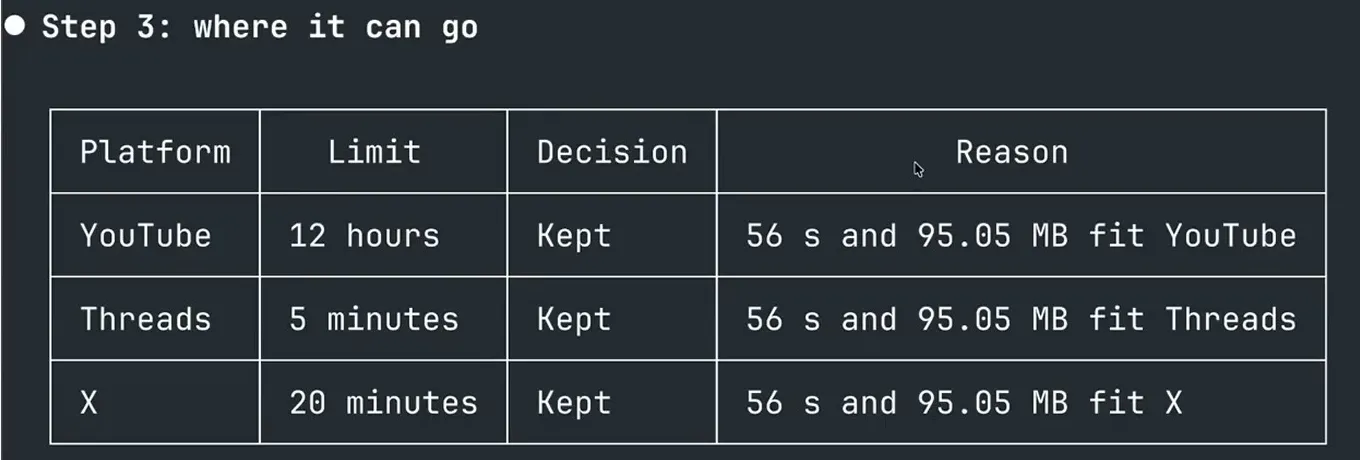
The platform table. YouTube, Threads and X are all marked Kept, and the Reason column says why.
Step 5: Let the agent write the post and pick the title, then answer two questions
You don't start from an empty caption box. When the agent asks what your Short is about, give it one sentence, or hand that job over:
You figure out what it's about.
In the example run, the agent read the Short's caption and passed a description to Threadify, which wrote the post in the creator's voice. The agent can choose the title too. Here it kept the title already approved for the Short, which was also the last line of the post word for word, so nothing was rewritten.
Then the agent asks the two things it won't decide for you:
- Who can see it on YouTube: public, unlisted or private. The workflow asks this on every run.
- When it should go out: one time for all three platforms, or a different time for each. The time has to be at least 5 minutes away.
The first takes one word. For the second, you can let the agent fit the timing around your calendar:
You decide when it should go out based on when other posts have recently gone out and what I've got scheduled.

The chosen title and why the agent kept it, then the two questions: YouTube privacy and timing. Times are in AWST, the example account's time zone.
Step 6: Check the approval card before you say yes
The card shows you what's about to happen before any of it is live. Once your file is uploaded and the post passes Threadify's checks, the agent builds an approval card with the YouTube title, the post Threadify wrote, the YouTube privacy setting and the time for each platform. In the example run, the card set YouTube for Sat 10 Oct at 6:26 pm, the slot the Short already had, and Threads and X for 3:00 pm the same day. Nothing is scheduled until you reply yes, so read every line before you answer.
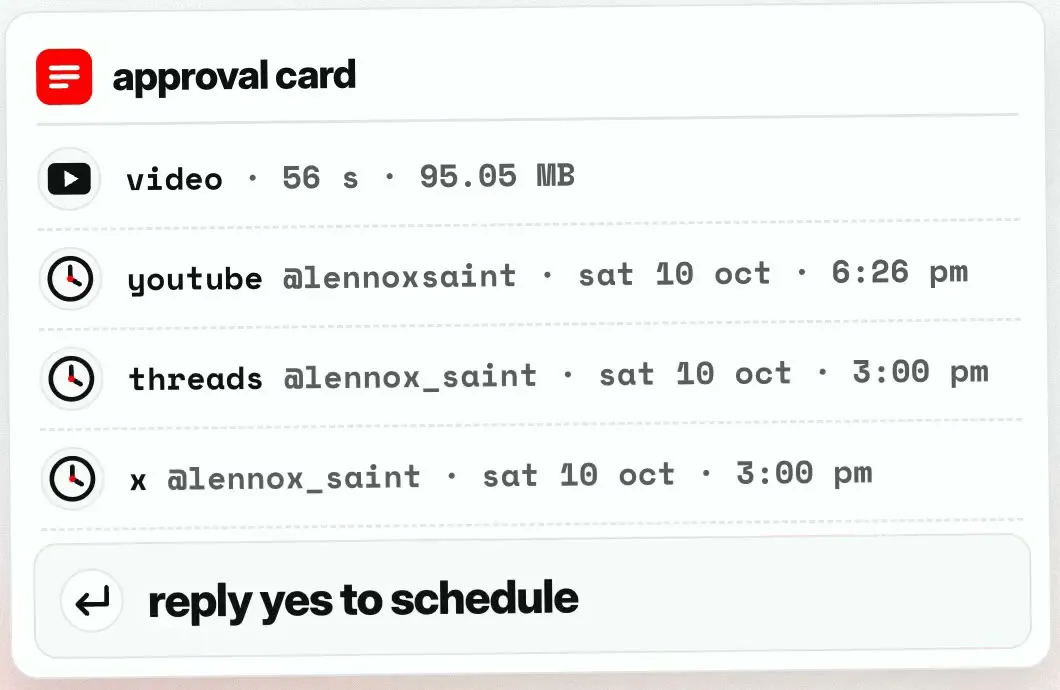
The approval card: the file's length and size, the time for each platform, and "reply yes to schedule" at the bottom.
Step 7: Reply yes and confirm all three are scheduled
One reply schedules all three platforms, and you get one confirmation back. Reply:
yes
The agent checks that your yes matches the card, schedules all three and then reads them back. In the example run, the result table showed YouTube on Sat 10 Oct at 6:26 pm (Short, public), with Threads and X at 3:00 pm, all in AWST. The readback confirmed the status was "scheduled" and that "the stored text matches the card word for word. Nothing was dropped."
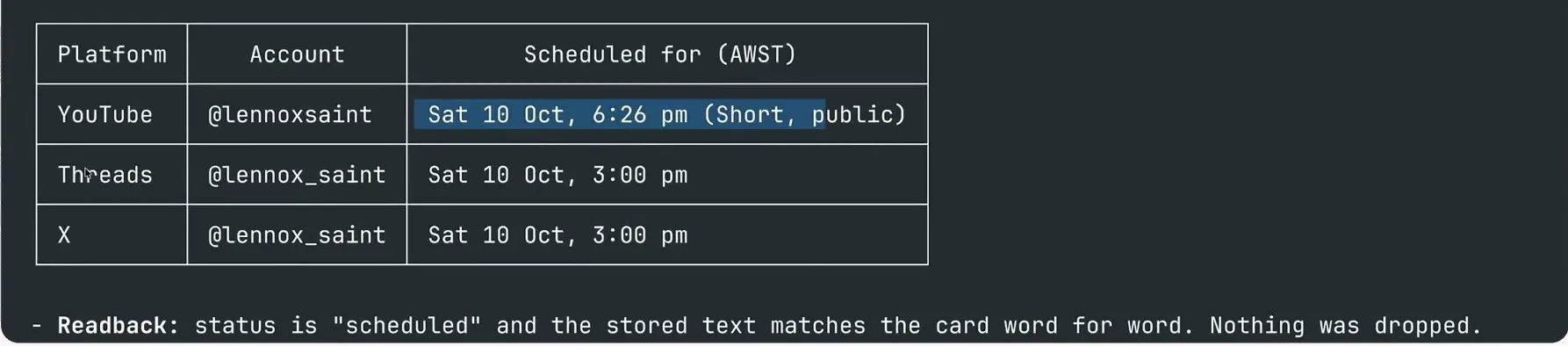
The scheduled table for YouTube, Threads and X, with the readback line underneath confirming nothing was dropped.
If you're deciding what else to hand to an agent, here's what to automate and what to keep human.
What to expect when you schedule your first Short this way
- The example was a Short. It used a 56-second file, and the run didn't include longer ones. Start with a short one so you can see each step before you trust the workflow with a bigger upload.
- Size and length limits still apply. Your agent can send a file up to 1 GB. Threads takes videos up to 5 minutes and X up to 20 minutes, so check the platform table's Decision column before you move on.
- You choose YouTube privacy every time. The agent can't pick public, unlisted or private for you, so expect that question on every run.
Get your next Short on all three platforms this week
Your next upload doesn't need doing three times. Open Threadify, connect YouTube next to Threads and X, and link your AI agent from the Agent tab. After that, your next Short takes one approval card and one yes.
Frequently Asked Questions
Can I post at a different time on each platform?+
Yes. When the agent asks when it should go out, you can give one time for all three or a separate time for each platform. Any time you choose has to be at least 5 minutes away.
Will my AI agent publish anything without asking me?+
No. The agent shows you an approval card first, with the title, the post, the YouTube privacy setting and every platform's time. Nothing is scheduled until you reply yes.
How big a file can I send to my agent?+
Up to 1 GB. Length limits still apply: Threads takes videos up to 5 minutes and X up to 20 minutes. The agent's platform table shows whether your file fits each one.
Which AI agent apps can run this workflow?+
Claude Code, the Claude desktop app or the ChatGPT desktop app, once it's connected to Threadify from the Agent tab.
Do I need to write the Threads and X post myself?+
No. You can describe your Short in one sentence or let the agent work it out. Threadify then writes the post in your voice, and you see it on the approval card before anything is scheduled.
Try Threadify for free
Write better Threads in less time. Generate, refine, schedule—without the chaos.