Turn a YouTube Video Into a Threads Post That Sounds Like You
Learned something worth sharing from a long YouTube video? Paste the link into your AI agent, get three hooks and a full thread built from it, then make it sound like you in Threadify.

You finish a long YouTube interview with three ideas you can't stop thinking about, and you want your followers to hear them while they're still fresh. Then the real work starts. You scrub back through it hunting for the exact moment a point was made. You write a hook, delete it, try again. By the time the thread reads properly the evening is gone, or the idea sits in your notes until it no longer feels worth posting.
The shortcut most people try is pasting the link into an AI chat. What comes back sounds like every other summary on your feed: tidy, correct and nothing like you. You wouldn't put your name to it, so you don't post at all.
With the workflow below, you paste one YouTube link into your AI agent and get back three hook options plus a full thread drawn from that video, with each post pointing to the moment it came from. Then Threadify rewrites it so it sounds like you, and you schedule it.
Who this YouTube-to-Threads workflow is for
It's for creators who already post on Threads and learn a lot from long videos in their niche: interviews, podcasts, masterclasses. If you've ever thought "my followers need to hear this" halfway through watching something, it's for you.
The workflow is called YouTube Synthesizer, and it's free. "Synthesis" just means pulling the strongest ideas out of something long and combining them into something new. Here, that's one thread: a hook post at the top, one idea per post, then a summary or call to action at the end.
What you need before you start
A Threadify account with your Threads account connected. You sign in with Google.
A paid Threadify plan, since every paid plan lets you connect an AI agent.
An AI agent such as Claude, ChatGPT or Gemini.
A YouTube video with captions. The workflow reads a video's transcript rather than watching it. If your video has no captions, you can give your agent the transcript as a TXT, VTT or SRT file instead.
If you've already connected your agent to Threadify, for example to find your Threads niche from posts you've already written, skip to Step 2.
How to turn a YouTube video into a Threads thread (7 steps)
Step 1: Let your AI agent work with your Threadify account
Once your agent is connected, the workflow uses that connection on its own, so your draft can move straight into Threadify instead of being copied between apps.
In Threadify, open the Agent tab at the top. Scroll down and follow the setup steps for your agent. For Claude, click Copy next to the link shown, then in Claude go to Settings → Connectors → Add custom connector. Name it Threadify, paste the link and leave Client ID and Secret blank. Claude then opens your browser so you can log in and click Allow.
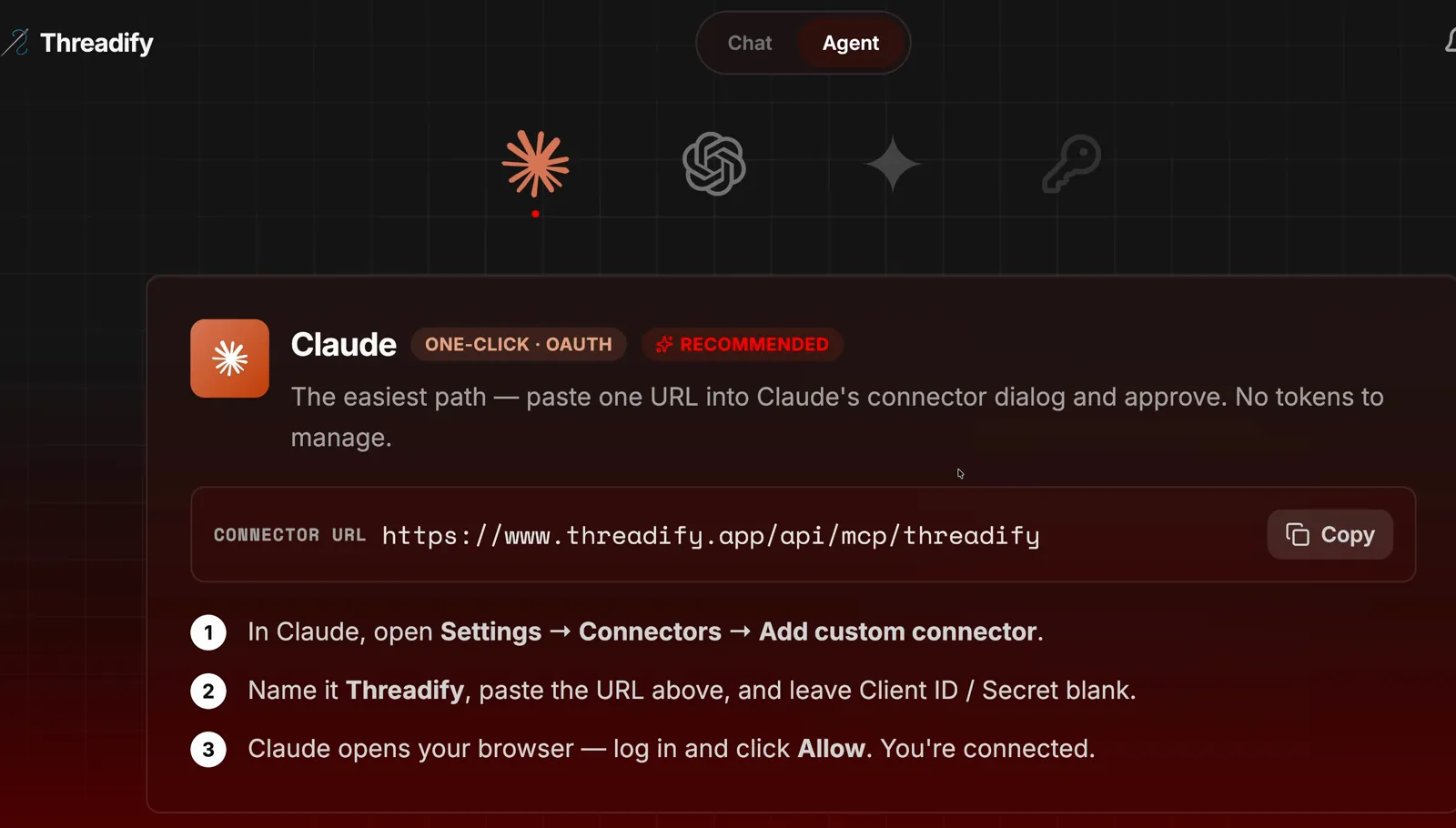
The Agent tab with the Claude card. Notice the Copy button beside the link and the three numbered steps underneath.
Step 2: Add the free YouTube Synthesizer workflow to your agent
One message gives your agent the whole workflow, including the 12 writing structures it checks every video against. Open a new chat with your agent and paste this:
https://github.com/lennoxsaint/Threadify-workflows install this github repo and run the YouTube synthesizer workflow
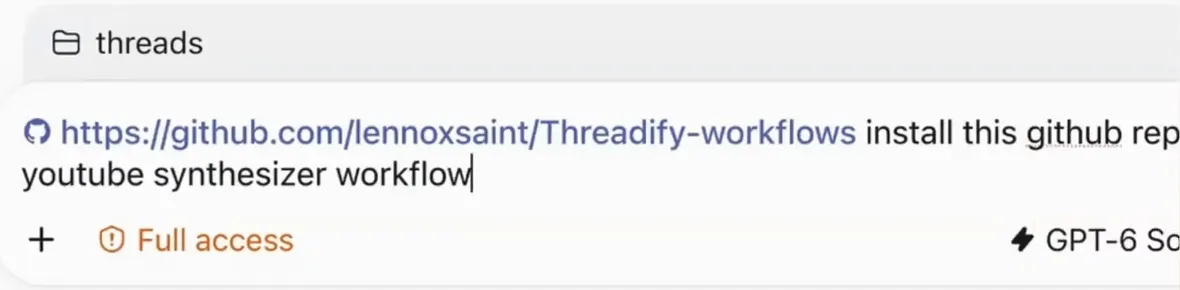
The install message in the agent's prompt box. The workflows link comes first, then one plain sentence asking the agent to install and run it.
Step 3: Give your agent the link to something you learned from
All your agent needs is the link. On YouTube, open the three-dot menu, click Share and copy the link. Paste it into your agent and ask it to run the workflow:
[paste the YouTube link here]
run YouTube Synthesizer
Try Threadify for free
Write better Threads in less time. Generate, refine, schedule—without the chaos.
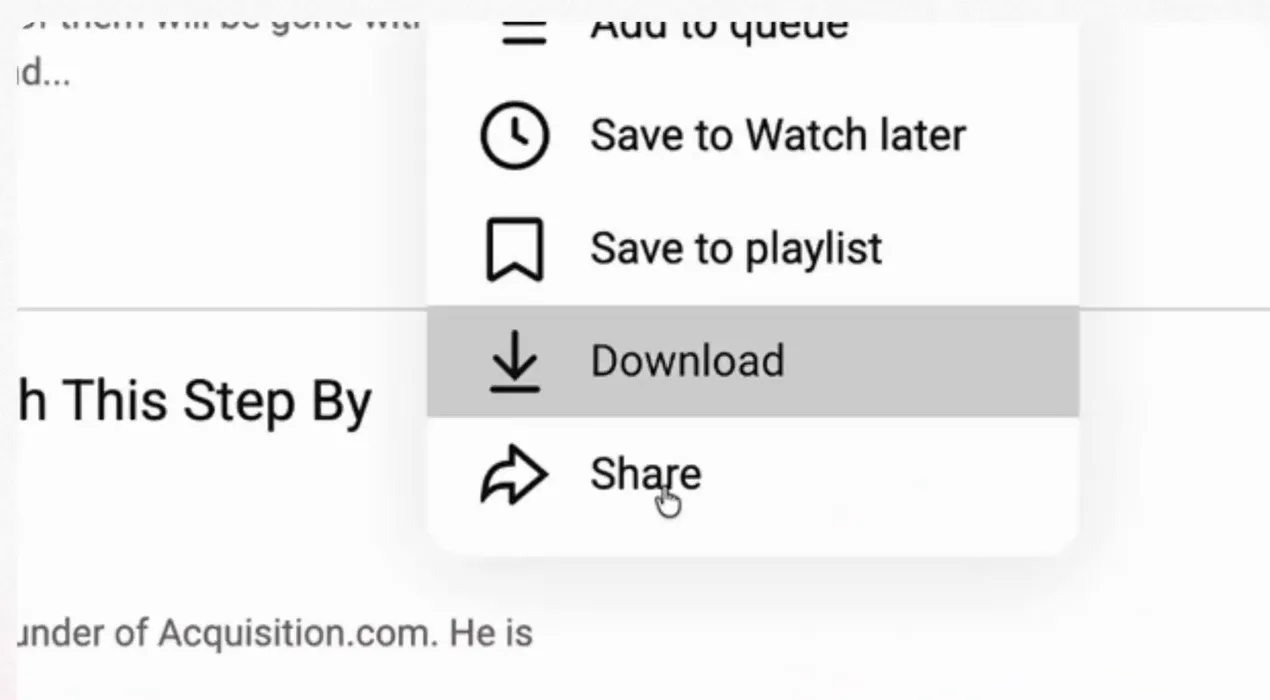
YouTube's menu with Share at the bottom. This is where you copy the link.
While it runs, the workflow reads the transcript and studies how you write, so the draft starts closer to your voice.
Step 4: Choose the hook that sounds like you
Instead of a blank first line, you get three openings to choose from. Each hook uses one of the 12 writing structures and is named after it. In the example run, the options were Pattern Hunt, Binge-Watch Breakdown and Life-Changing Video Lessons.
Underneath sits one shared thread body that works with any of the three, so you can pick the hook you'd actually say out loud without rewriting everything below it. If you're torn, this guide to writing Threads hooks will help you judge.
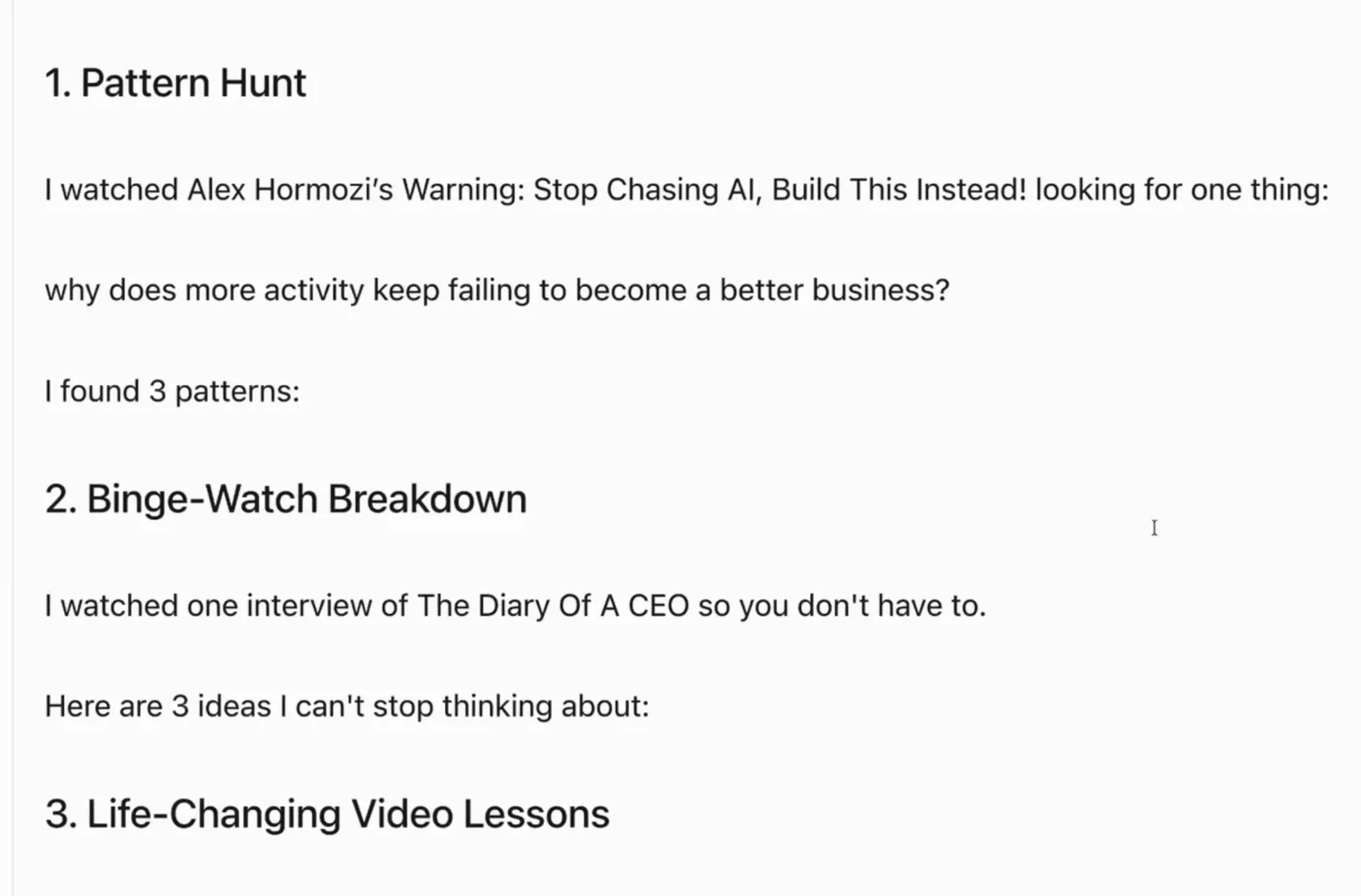
The three hook options from the example run, each labelled with the writing structure behind it.
Step 5: Check each post against what was actually said
This step protects your name. Every post in the draft shows the stretch of your video it's based on. In the example run, Post 4 is labelled "Evidence: 3:42-4:33", followed by the point and a personal take: "my take: build for how long you want this thing to last."
Jump to that time in your video and make sure the point holds up. Cut anything you can't confirm or don't agree with. Nothing goes out at this stage, because the draft stays private until you approve it.
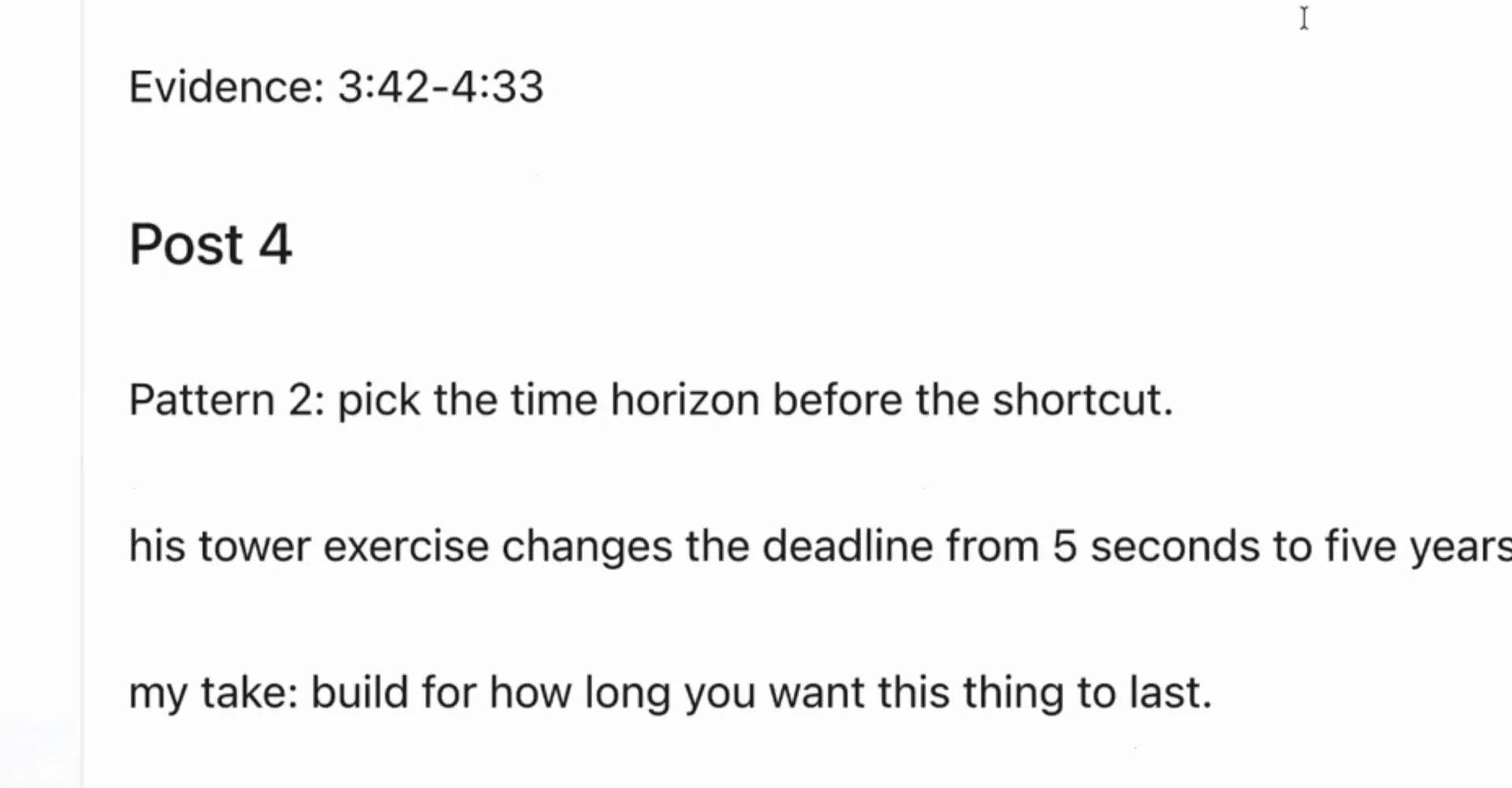
One post from the draft thread. Notice the Evidence time range at the top, which tells you exactly where to check.
Step 6: Make it sound like you with Threadify's rewrite
A draft can be accurate and still flat. In the example run, the agent's first version had good ideas but very little personality. Threadify's rewrite fixes that by writing from what it knows about you.
In Threadify, type this and paste the thread underneath:
rewrite this:
[paste the thread here]
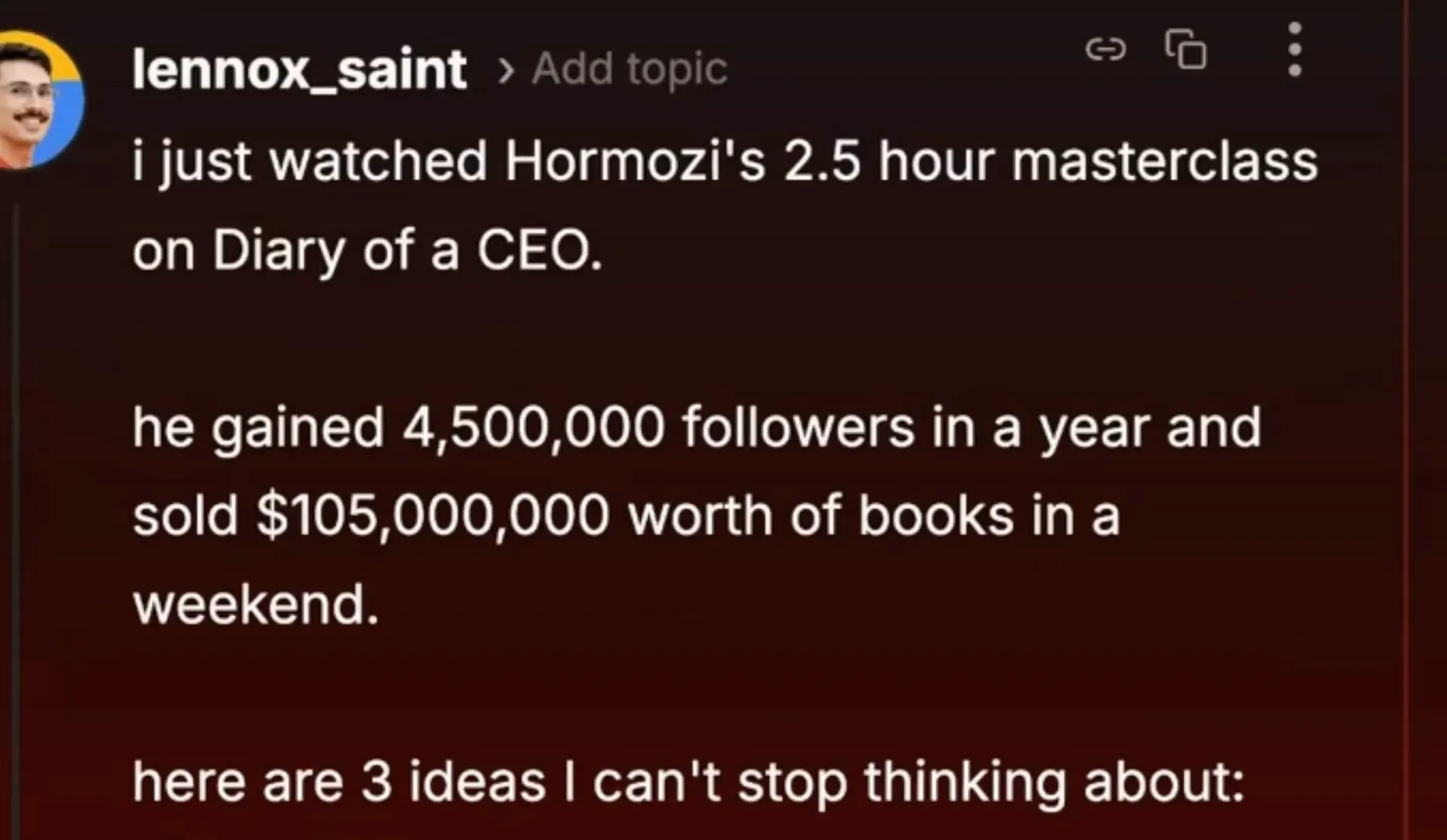
Threadify's rewrite of the hook post in the composer. It reads looser and more conversational than the first draft.
In the example run, the rewritten hook opened casually, in lower case, with "i just watched". The more Threadify knows about you, the closer this gets, so set up Threadify to sound like you if you haven't already.
Step 7: Schedule it for a time your audience is around
Threadify can suggest a slot from your own posting history, so you don't have to guess when to post. If you want an image on the top post, add it first: drop a screenshot into your agent and send:
make sure this screenshot is attached to the top post in the thread
Then click Schedule in Threadify to open the Schedule Content window. You can set a Date and Time, tap one of the Quick Slots (9 AM, 3 PM, 9 PM), or click a slot in Best Time to Post, which is based on your posting history. On the example account, the panel showed BEST DAY Tue and BEST TIME 02:00. Yours will reflect your own posts.
If you'd rather stay in your agent, ask it to schedule the thread at your best time to post.
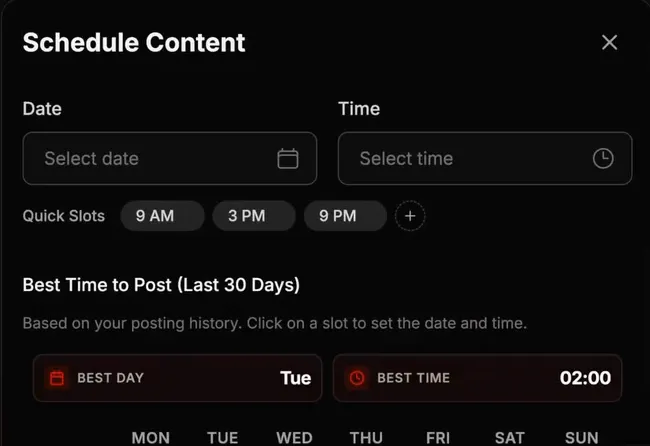
The Schedule Content window. Notice the Quick Slots and the Best Time to Post panel, built from that account's posting history.
What to expect from your first run
One video you learned from becomes a reviewed, scheduled thread: a hook you chose, one idea per post, each tied to a moment in that video, in words that sound like yours. How it does after you post is still up to your audience. A few things to know before you rely on it:
The workflow works from the transcript and doesn't download any video or audio, so anything shown on screen but never spoken won't make it in.
You review every post. The evidence time ranges make checking quicker, but the checking is still yours to do.
The 12 structures were built from 67 posts on the example account. Those posts had 2,615,559 total views when they were measured, but that's one account's past results and no promise about how your thread will do. Treat them as a starting shape for your thread.
The first draft can read as generic. Step 6 is there to fix that, so don't skip the rewrite.
Name the YouTube video you learned from and its creator in your thread so readers can find it, and add your own take so the thread says something the original didn't.
It's also the wrong tool when you want to share your own original idea rather than someone else's video. For that, start from your idea and build several posts from it.
Share what you learned from your next YouTube video
Next time a video sticks with you, you don't have to give up an evening to share it. Open Threadify and connect your AI agent so your next YouTube Synthesizer draft lands in the place where you can rewrite it in your voice and schedule it.
Frequently Asked Questions
Is the YouTube Synthesizer workflow free?+
Yes. The workflow is free to install. To run it with Threadify, you need a paid Threadify plan, because that's what lets you connect an AI agent to your account.
Which AI agents can run YouTube Synthesizer?+
You can connect Claude, ChatGPT or Gemini to Threadify from the Agent tab, then install the workflow with one message.
What if a YouTube video has no captions?+
The workflow needs a transcript. If a video has no captions, give your agent the transcript as a TXT, VTT or SRT file instead.
Will my agent post the thread to Threads without asking me?+
No. The workflow creates a private draft. Nothing is scheduled or published until you approve the exact thread.
Try Threadify for free
Write better Threads in less time. Generate, refine, schedule—without the chaos.