
Turn Your App or Offer Into Seven Scheduled Threads Posts
Built something good that nobody knows about? Your AI agent can read your page the way a stranger would, turn what it finds into seven different posts and schedule them once you say yes.

You built something good. Maybe it's an app, a course, a coaching offer or a landing page you've rewritten more times than you'd like to admit. You posted about it once, maybe twice, and the replies were quiet.
Now every time you open Threads you hit the same blank box. How do you talk about the same thing again without it reading like another "check out my thing" post? So you post something generic, or nothing, and the thing you made sits there unseen.
This workflow fills that box for a week. Your AI agent looks at your page the way a stranger would and lists the real features it can see. It turns those features into seven different post angles and drafts and fact-checks the posts. Once you reply yes, it schedules one a day with a follow-up Auto Plug under each. You read every draft before anything is scheduled.
It's for creators and founders who already post on Threads and have something to sell: an app, a course, a service or a community. If you've been building in public on Threads, it gives you a week of material taken straight from the thing you built. Only run it on a page you own or have written permission to examine.
What you need before you start
- A Threadify account with your Threads account connected. Every paid plan includes agent connections.
- An AI agent app that can run a workflow on your computer and open a browser window. The example run used Claude Code, and the install steps are written for any agent app.
- The link to your app, landing page or sales page. You don't need to know how to code.
- Time to read seven drafts properly before you approve them.
How to turn your app or sales page into seven scheduled Threads posts (8 steps)
Step 1: Let your AI agent work inside your Threadify account
Every later step depends on your agent being able to draft and schedule in Threadify for you. Sign in to Threadify and connect your Threads account. Open the Agent tab at the top, scroll down to the agent cards (Claude, ChatGPT and others) and pick yours. On the Claude card, click Copy, then follow the numbered steps on the card. The last one has you log in and click Allow in your browser. For more detail, see how to connect Claude to Threads with Threadify.
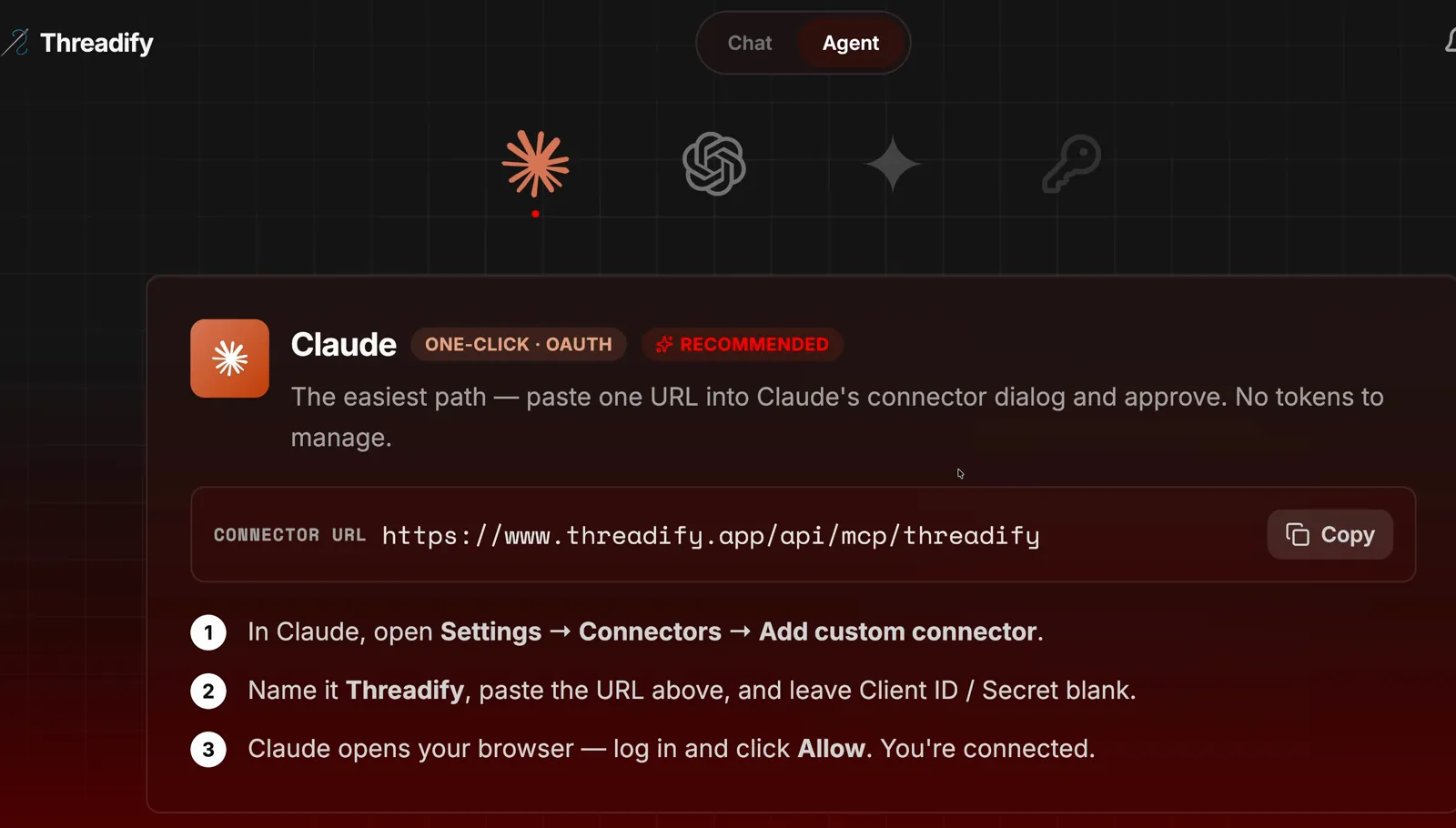
The Agent tab with the Claude card. Copy the link, then follow the numbered steps.
Step 2: Install the free workflow without touching any code
This gives your agent the workflow and everything it needs to run it. Open a new chat in your agent app. Paste the workflows link and the one-line install request, word for word as they appear in the screenshot below.
During setup, the workflow asks to install REA (Reverse Engineer Anything), the public GitHub tool that handles the stranger's view. Say yes and it installs REA for you, so you don't have to do it yourself.

The whole install message, the workflows link plus one line asking the agent to install it and run setup.
Step 3: Make sure the posts go to the right account
Before it writes anything, the workflow confirms where the posts will go. Start it with this command, putting your own page link in place of the placeholder:
/threadify-reverse-engineer-my-app <your app link>
First comes an Account check: the agent names the Threads account it's connected to and that account's time zone. Then it asks whether you own the app or have written permission to analyse it. Only answer yes if that's true. If it isn't, stop here.
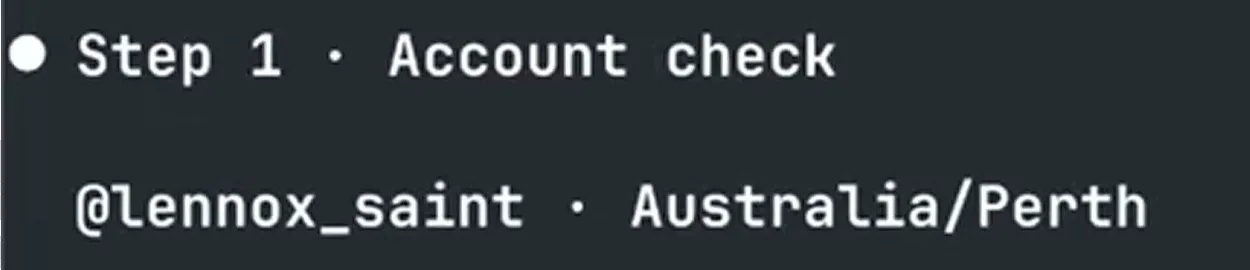
The Account check names your connected Threads account and its time zone before anything gets published.
Try Threadify for free
Write better Threads in less time. Generate, refine, schedule—without the chaos.
Step 4: See your page the way a stranger sees it
You get an honest list of what a first-time visitor can actually find. The workflow opens your page in a fresh Chrome window with no login and reads what the page loads. Then it closes the window and builds a table of the features a stranger can see, with the file where it found each one.
Skip the file names and read the Feature column. In the example run, the visible part of the table lists 14 features, from billing and subscriptions down to login handling. The agent also reports what it couldn't see: anything the server does, and how the features behave once someone is logged in.
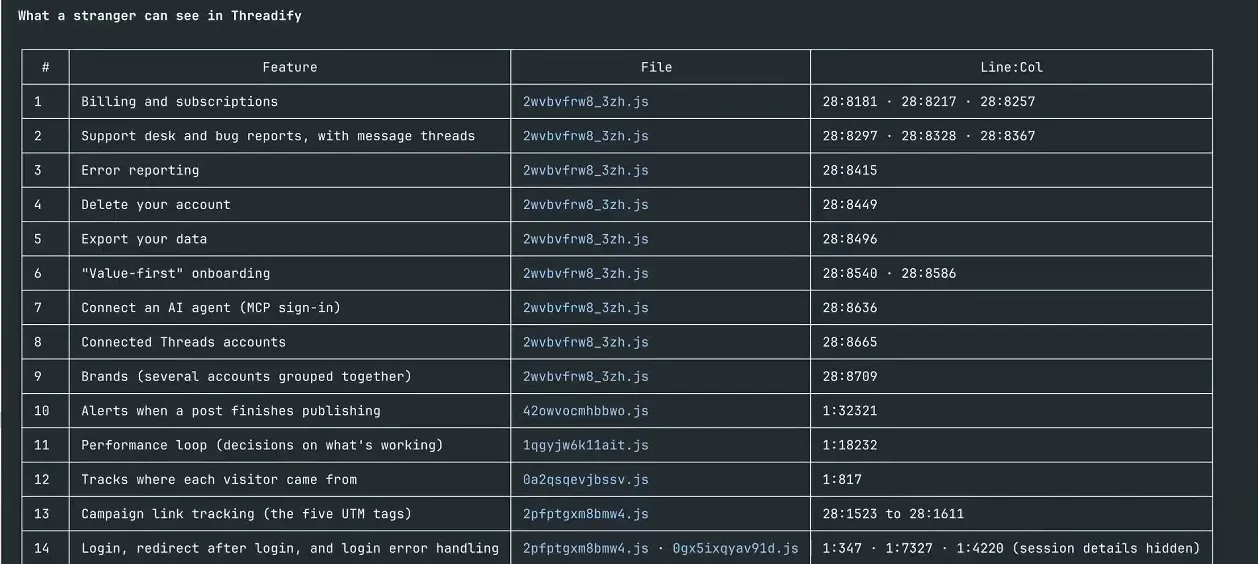
'What a stranger can see', a numbered list of features found on the logged-out page. The Feature column is the one to read.
Step 5: Get seven post ideas, each about a different real feature
The workflow turns the feature table into seven briefs, set out in a Day, Angle and Feature table. Each day takes one real feature from a different angle, and the brief notes that none of them is a "check out my app" post. In the example run, day 1 explains what connecting your AI agent does, and day 7 asks readers a question about the built-in support desk.
If you want the drafts to sound more like you, now is the time to give the agent your reason for building the thing, or a testimonial. Paste the text into the chat or tell the agent which file holds it. The example run did this. If you don't have them to hand, skip it.
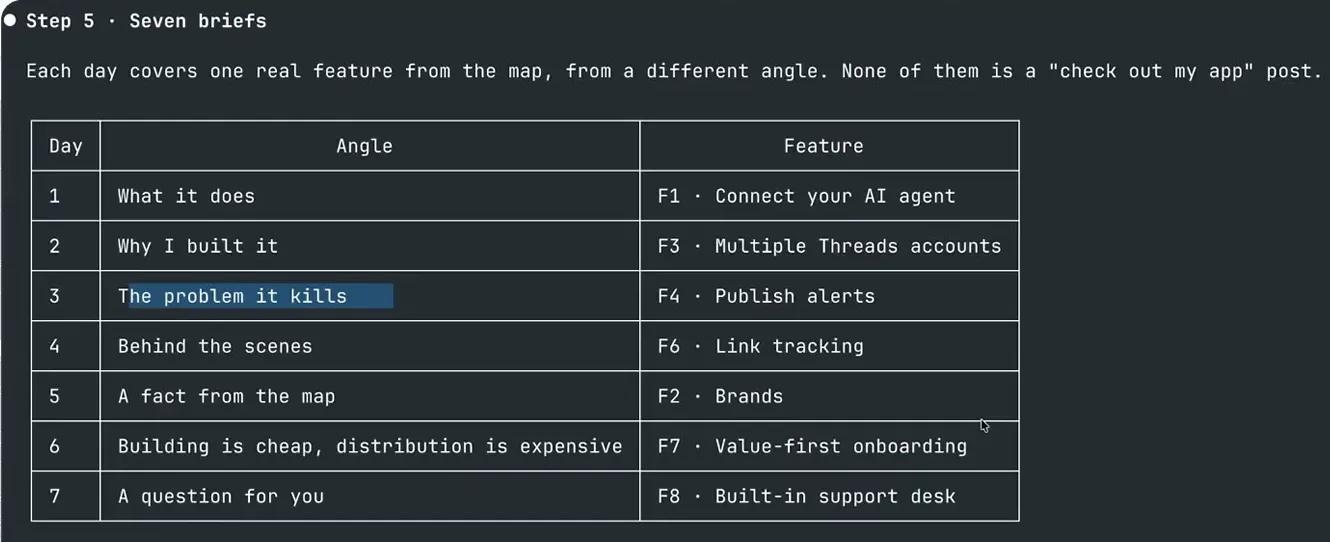
Seven briefs, one real feature per day, each from a different angle.
Step 6: Check the facts and fix anything that sounds generic
Threadify drafts the seven posts and the workflow fact-checks each one before anything goes out under your name. Look at the Checks table. In the example run, Facts shows PASS for all seven drafts, and day 6 passed on the 2nd try. The Casing column shows whether only capital letters changed, and on day 7 the testimonial stayed word for word.
A PASS means the facts line up. It doesn't tell you whether the post is any good, so read every draft. In the example run, the post about brands read like generic filler, so the creator asked for a different line. Small edits take one sentence:
For post 6, replace the word x-rays with reverse engineers.
Swap in your own post number and words.
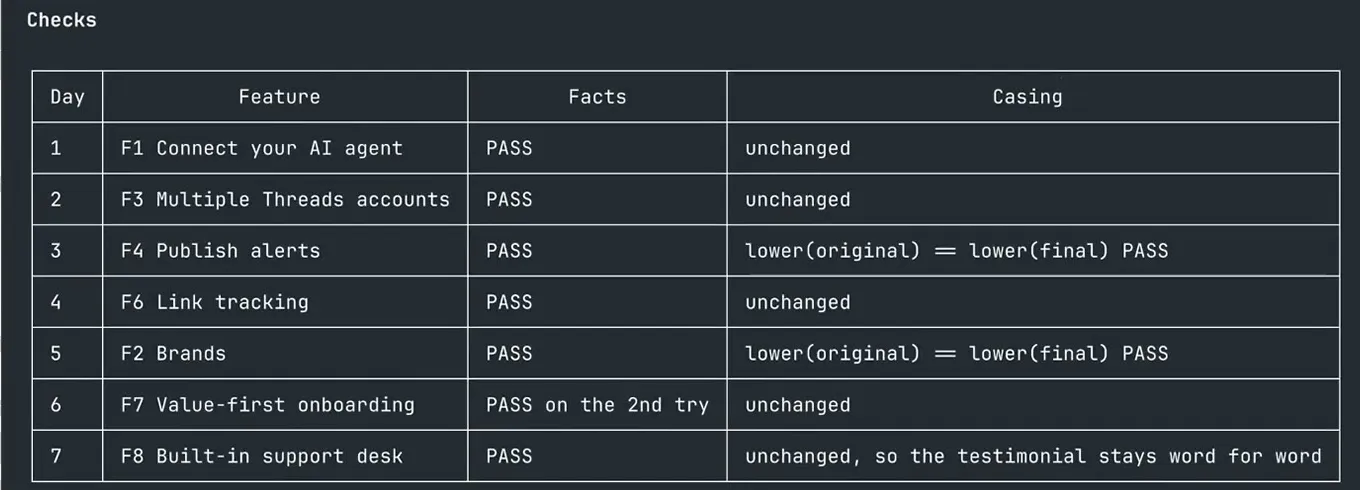
The Checks table. Facts PASS for all seven drafts, with day 6 passing on the 2nd try.
Step 7: Approve the whole week with one word
When you're happy with the drafts, the agent prints all seven posts with their Auto Plugs. An Auto Plug is a follow-up that publishes beneath your post after the post goes out. (Here's when an Auto Plug beats a manual call to action.)
Reply yes, as the screenshot shows. The agent then schedules one post a day for seven days at your best times to post, without you opening a calendar. Nothing is scheduled until you type yes.
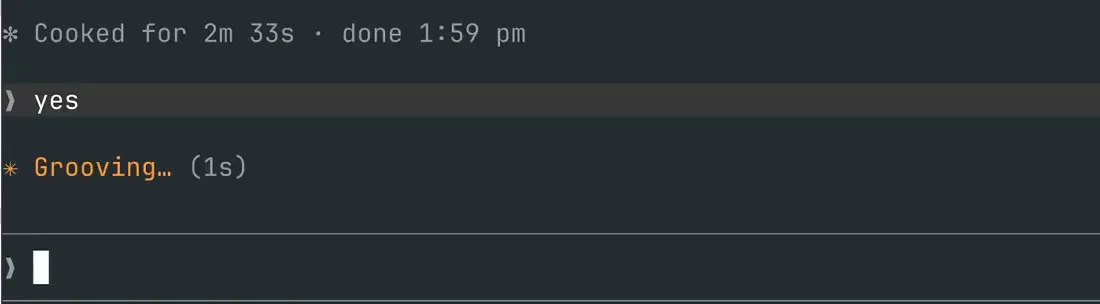
The summary is finished, the reply is just 'yes', and the agent starts scheduling.
Step 8: Confirm your week is on the calendar
The agent reads back what it scheduled, so you can check before you walk away. The example run's read-back says "Scheduled. Seven days." It lists seven posts, one a day from Thu 15 Oct to Wed 21 Oct in the creator's Perth time, each with an Auto Plug set for 50 min after. Then open your Threadify calendar and check that all seven posts are there.
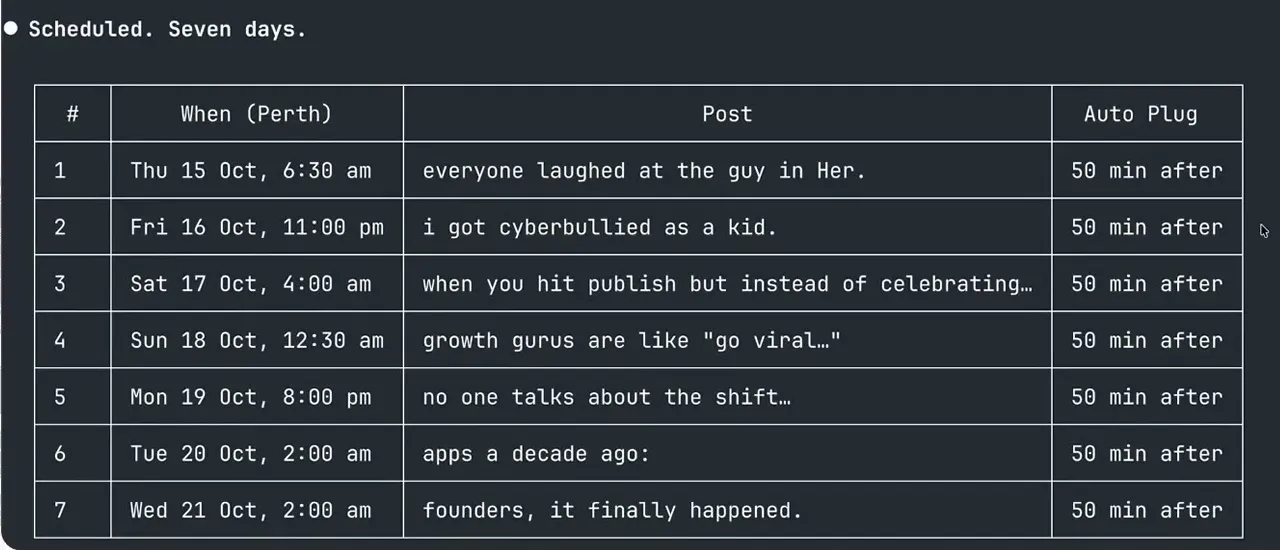
The read-back. Seven posts on seven days in a row, each with an Auto Plug 50 min after.
What to expect from your first run
You end up with a week of posts about what you built, written from features a real visitor can see, and you've read each one before it was scheduled. The workflow makes no promise about how the posts will perform, so read each draft as a starting point and edit it until it sounds like you. If you'd rather plan the week yourself, here's how to batch a week of Threads content by hand.
What this workflow can't see, and what to check yourself
- It only sees the logged-out view. It can't see what happens behind your login or on your server. If your best features live inside the product, mention them yourself when you add your story in Step 5.
- It can't copy your audience. It finds things to say, and the people who read them are still yours to earn.
- Read before you say yes. Two drafts in the example run were edited: one read like generic filler and one had a word swapped. Its drafts were also rewritten to fit post templates because the creator asked for that. That isn't a default step, so your drafts may read differently.
Get your week of Threads posts scheduled
If what you built deserves more than one launch post, start while it's fresh. Sign in to Threadify and connect your agent. Once that's done, you can run the workflow on your own page and have a reviewed week of posts on your calendar.
Frequently Asked Questions
Do I need an app, or will a sales page work?+
A sales page works. If you sell a course, a service or a community, paste that page's link instead of an app link, and the workflow turns what it finds there into seven posts.
Will the agent post anything without my approval?+
No. It first confirms which Threads account is connected, then shows you the briefs, the drafts and their fact checks. Nothing gets scheduled until you reply yes.
What is an Auto Plug?+
A follow-up that publishes beneath your post once the post goes out. In the example run, each Auto Plug was set to go out 50 minutes after its post.
Can I run this on someone else's app?+
Only with their written permission. The workflow asks whether you own the app or have written permission to analyse it. If the answer is no, stop.
Do I need to know how to code?+
No. You paste a link and type a few plain sentences to your agent, and the workflow installs the tool it needs during setup.
Try Threadify for free
Write better Threads in less time. Generate, refine, schedule—without the chaos.