
Teach Your AI Agent Your Voice and Draft a Week of Threads Posts
AI drafts that sound like nobody, and no time to teach an agent how you write? One prompt sets it up from your own notes, checks one sample with you, then drafts your week for review.

It's Sunday night and you ask an AI tool for a week of Threads posts. What comes back is tidy, capitalised and polished in a way you'd never write. You spend the next hour knocking the shine off each one and swapping its words for yours. By the fourth post you're wondering why you didn't start from a blank page. Or you're tired, you post one anyway, and it sits in your feed sounding like everyone else's.
Everyone says to "teach the AI your voice". In practice that means digging out old posts, explaining your quirks, and doing it all again every time you open a new chat. (For why context is what makes AI sound like you, see AI slop is a choice.)
With this setup, your AI agent does the digging after one prompt. It connects to your Threads account through Threadify and reads your own notes and writing. It shows you what it thinks your voice is, saves what you approve and checks one sample post with you before it drafts your week. Nothing gets scheduled until you say so.
What you need before you start
- A Threadify account with your Threads account connected.
- An AI agent app that can install workflows and control your computer, such as the ChatGPT app or Claude.
- Some of your own writing on your computer, such as notes, drafts or saved posts. If you don't have much, the agent can lean on your published posts and anything already saved in your Threadify Brain (the place Threadify keeps your voice and facts, covered in Step 4).
Would you rather set up your voice by hand? How to set up Threadify to sound like you covers the manual route.
How to teach your AI agent your voice and draft a week of Threads posts (5 steps)
Step 1: Install Threadify's free workflows with one prompt
This gives your agent the whole setup, so you don't have to learn any of it. Open a new chat in your AI agent, then paste this prompt and send it:
Turn this AI into my Threadify social media operator. Install the latest stable Threadify Workflows from https://github.com/lennoxsaint/Threadify-workflows and run Get Set Up.
That's the only long thing you'll type. From here, the agent asks and you answer.
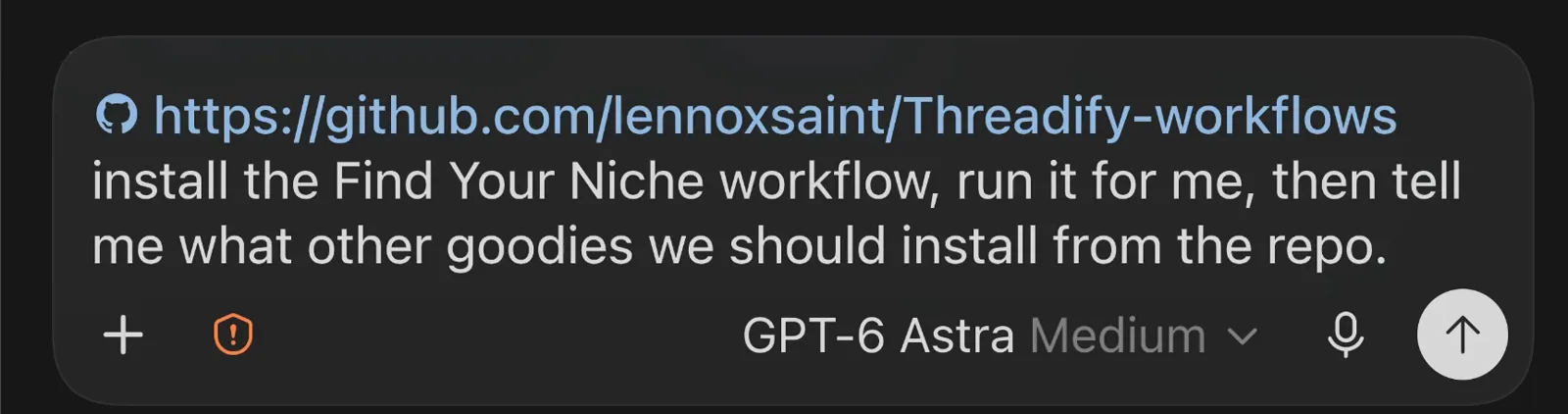
Where your prompt goes: the agent's message box, with the free workflows link at the start. This shot shows a different install request, so paste the Get Set Up prompt above instead.
Step 2: Sign in so the agent works on the right Threads account
Signing in yourself means every draft is made for your account and nobody else's. The agent takes control of your computer and opens Threadify's sign-in page. Sign in with the account that owns the Threads handle you want to use, then go back to the chat and tell the agent you've signed in so it can carry on. If it asks which account to work on, confirm your own.
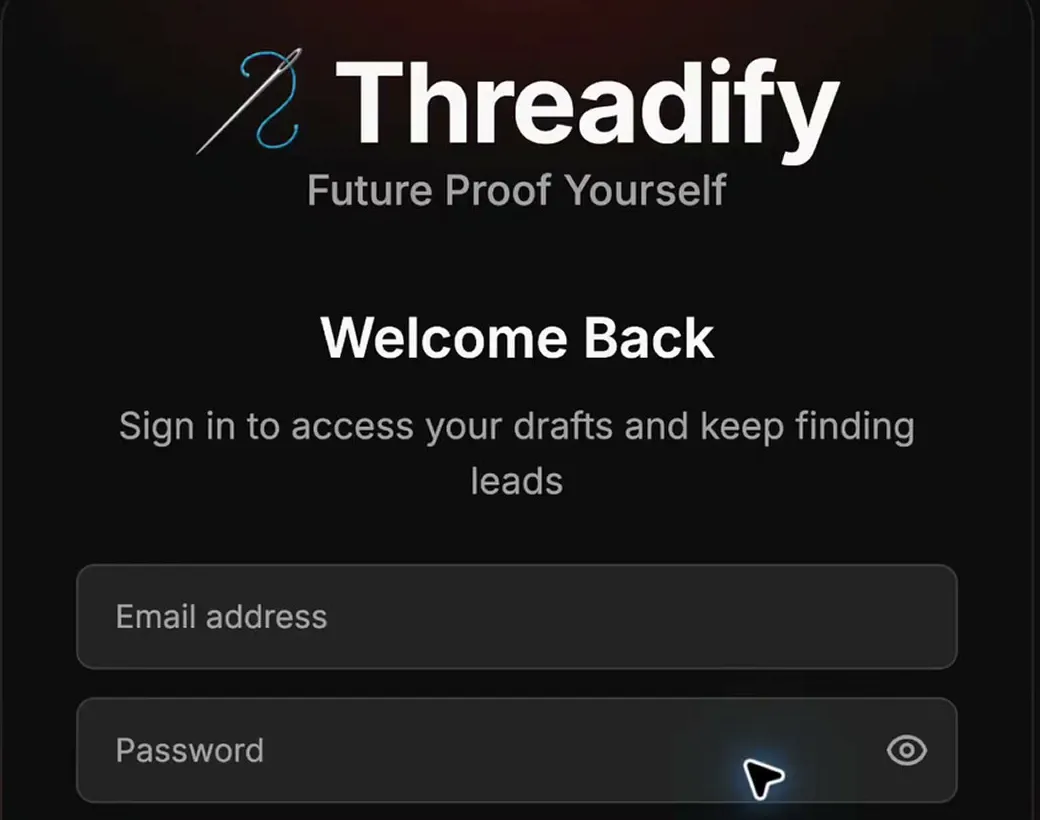
The Threadify sign-in page your agent opens. Sign in with the account that owns the Threads handle you post from.
Try Threadify for free
Write better Threads in less time. Generate, refine, schedule—without the chaos.
Step 3: Approve a voice summary built from your own writing
This is where the agent works out how you actually write, from your own words instead of a template, and you check it before anything is saved.
The agent searches the folders you've allowed it to read for your own writing and personal notes. It picks out what's useful and turns it into a short proposal covering your audience, voice, topics, offer and a starting posting pace. In the example run, it summed up the person's posts like this: "Your own posts show a clear pattern: short lines, plain words, everyday details, and a clean ending."
Everything after this builds on the proposal, so read every line. If the audience, voice or topics are off, tell the agent what to change. When it's right, reply with the single word "approve".
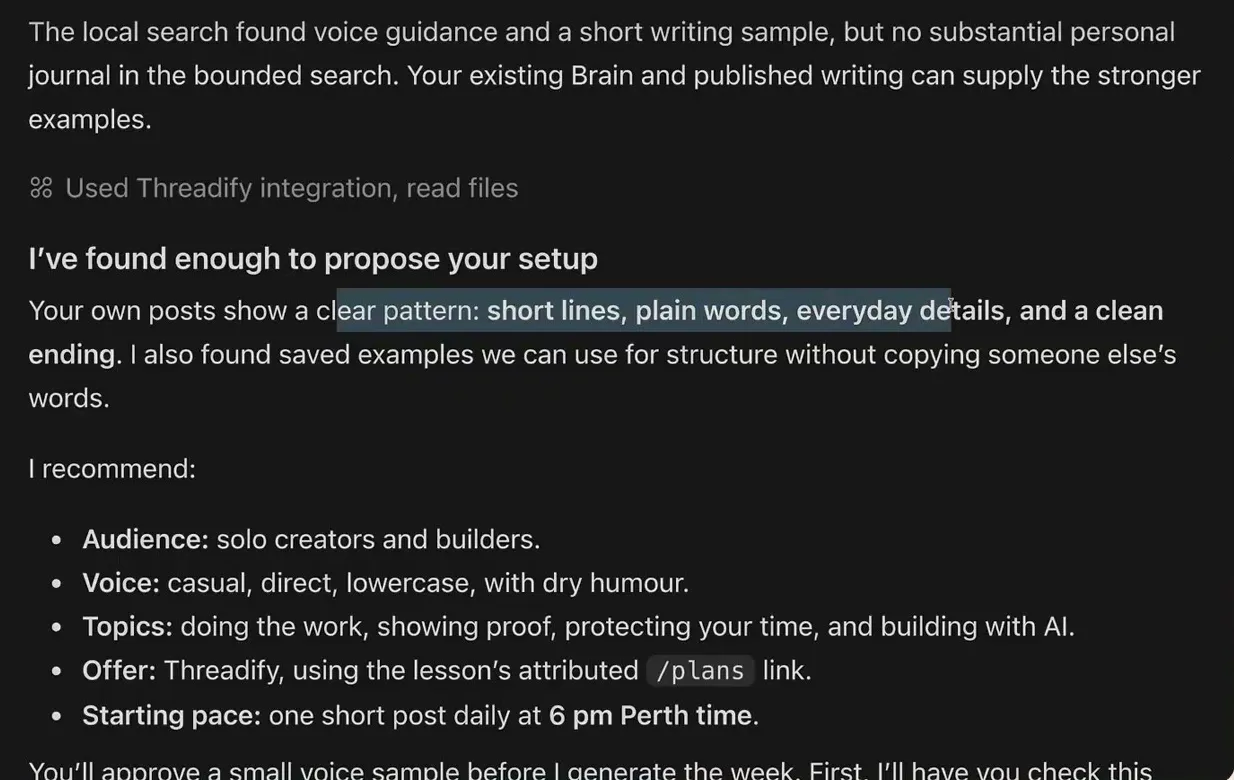
The proposal from the example run. Check each line (audience, voice, topics, offer and starting pace) before you approve.
Step 4: Check your voice is saved in your Threadify Brain
Seeing your voice in your Brain tells you future drafts can use it. Once you approve, the agent saves your approved voice and writing as a file in your Brain. Threadify breaks that file into small pieces of information, called fragments, which shape how your drafts are written. To see them, open Brain from your account menu in Threadify.
In the example run, the Brain page showed 17,798 fragments, and the agent reported eight new facts added from the setup. The page lists a few other totals too, which you can ignore. Those counts belong to the example account, so yours will be different. Your Brain holds whatever you've given it so far.
Your offer sits in the CTA Studio section of the Brain page. You don't have to fill it in by hand, because you can ask your agent to update it for you.
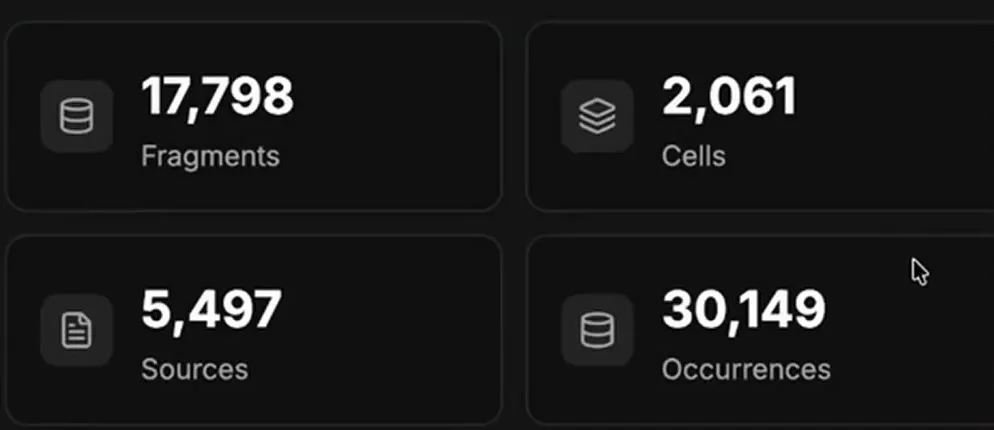
The example account's Brain page after the save. Your numbers will be different.
Step 5: Approve one sample post, then let the agent draft your week
One test post lets you check the voice before a whole week is written in it. The agent writes one short post from your saved material and asks whether it sounds like you. In the example run, the sample grew out of a note about protecting everyday moments from content pressure. It was all lowercase and came to 132 of 500 characters.
If it's close but not quite right, ask for a tweak, such as "make it more casual and personal". When it sounds like you, send:
Yep, that sounds like me. Go and create the first week of content.
The agent then checks your calendar for the coming seven days and writes drafts for the open days, working your offer in where it fits. When it's done, read every draft and ask the agent to change any sentence that's off. Ask it to schedule them only when you're happy.
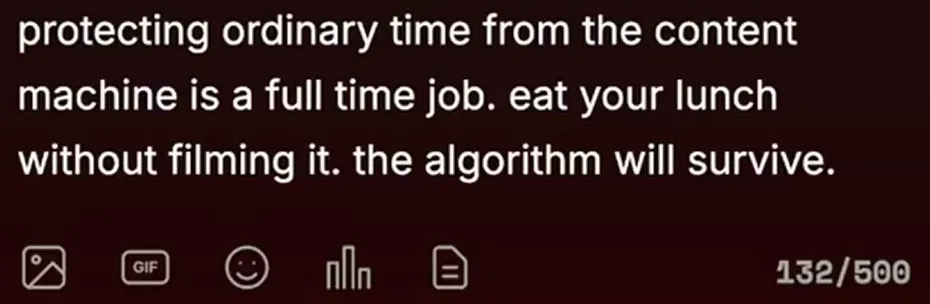
The example run's voice sample in the Threadify composer, in lowercase at 132/500 characters. Check that it sounds like you before you ask for the week.
What to expect from your first run
- The agent stops and waits for you to sign in, approve the summary and approve the sample, so stay near your keyboard.
- The agent searches the folders you've approved. Read the summary it proposes and, if something important is missing, tell the agent where to look before you approve.
- Your calendar decides how many new drafts you get. In the example run, five posts were already scheduled for the coming week, so the agent prepared four new drafts. Want a set number? Tell the agent how many posts you want each day.
- The example run's new drafts were prepared for review and not scheduled. You ask for scheduling after you've read them, and putting the agent on a daily routine is a separate choice.
- A draft can sound exactly like you and still get a detail about your life wrong. Read every story, number and claim about yourself before you schedule.
- The prompt is built to work in several agent apps, but the screens here come from one, so your buttons and wording may differ.
- If you don't keep notes and haven't posted much yet, the agent has less to learn from. Add some of your writing to your Brain first. How to update your Threadify Knowledge Base shows how.
How to get next week's drafts without redoing the setup
You only do the setup once. After that, ask your agent for a fresh week whenever you need one, and it uses the voice you already approved. If you'd rather have posts lined up each morning, let ChatGPT line up five Threads posts every morning covers that routine.
Get your first week of drafts in your own voice
Your notes and posts already hold your voice, and Threadify gives your agent a place to keep it. Open Threadify and connect your Threads account before you paste the prompt, so you're ready when your agent asks you to sign in.
Frequently Asked Questions
Do I have to repeat the setup every week?+
No. You only do the setup once. After that, ask your agent for a new week of drafts whenever you need one, and it uses the voice you already approved.
Will my AI agent post anything without asking me?+
No. The agent saves drafts for you to review. Scheduling only happens when you ask for it, after you've read the drafts and changed anything that's off.
Which AI agent apps does the setup prompt work in?+
The prompt is built to work in several agent apps, including the ChatGPT app and Claude. The screens in this guide come from one app, so yours may look a little different.
Can I choose how many posts the agent drafts?+
Yes. By default it drafts for the open days in your coming week, around posts you've already scheduled. Tell the agent how many posts per day you want and it drafts that number instead.
What if I don't have many notes on my computer?+
The agent can still lean on your published posts and anything already in your Threadify Brain. Adding more of your own writing to the Brain first gives it more to learn from.
Try Threadify for free
Write better Threads in less time. Generate, refine, schedule—without the chaos.