
Turn This Week's Niche Trends Into Your Own Threads Post
Checking four apps for this week's topics eats a morning. Let your AI agent scan them for your keywords, pick one topic, add your own take, and choose one of three Threadify drafts to schedule.

You want to post about what your niche is talking about this week. So you open YouTube, then a couple of subreddits, then TikTok, then Threads search. By mid-morning you have a pile of saved tabs, a vague sense that "everyone's talking about agents", and no post. Or you rush something out, and it reads like the take three bigger accounts already posted on Tuesday.
This guide is for creators already posting on Threads who want to join this week's conversation without losing a morning to research. Your AI agent scans YouTube, Reddit, TikTok and Threads for your keywords. You make the calls that matter: which topic, what you actually think, and which draft goes out.
What you need before you start
A paid Threadify plan with your Threads account connected. Every paid plan can connect an AI agent, and anything the agent does in Threadify uses the same monthly credits as the app.
An AI agent you already use. Threadify connects to Claude, ChatGPT and Gemini. The example run used the ChatGPT desktop app.
A Scrape Creators account with credits, added to your agent. Scrape Creators is a paid third-party tool that searches public posts on other platforms. It isn't part of Threadify, and there's no affiliate deal behind this recommendation. In the example run it was added to ChatGPT as a plugin, so check that your agent can use it before you start.
Three keywords for your niche. If you're not sure what your niche is yet, find your niche from posts you've already written first.
How to find this week's topic and turn it into your own Threads post (8 steps)
Step 1: Give your AI agent access to Threadify
Once it's connected, your agent can write drafts and schedule posts in your Threadify account, so you don't copy and paste between apps. In Threadify, open the Agent tab at the top of the composer and go to Set up a client. Choose the card for your agent and follow its numbered steps. On the Claude card, click Copy, then in Claude go to Settings → Connectors → Add custom connector. Name it Threadify, paste the link and leave Client ID and Secret blank. When your browser opens, log in and click Allow.
If anything trips you up, the step-by-step Claude connection guide covers it in more detail.
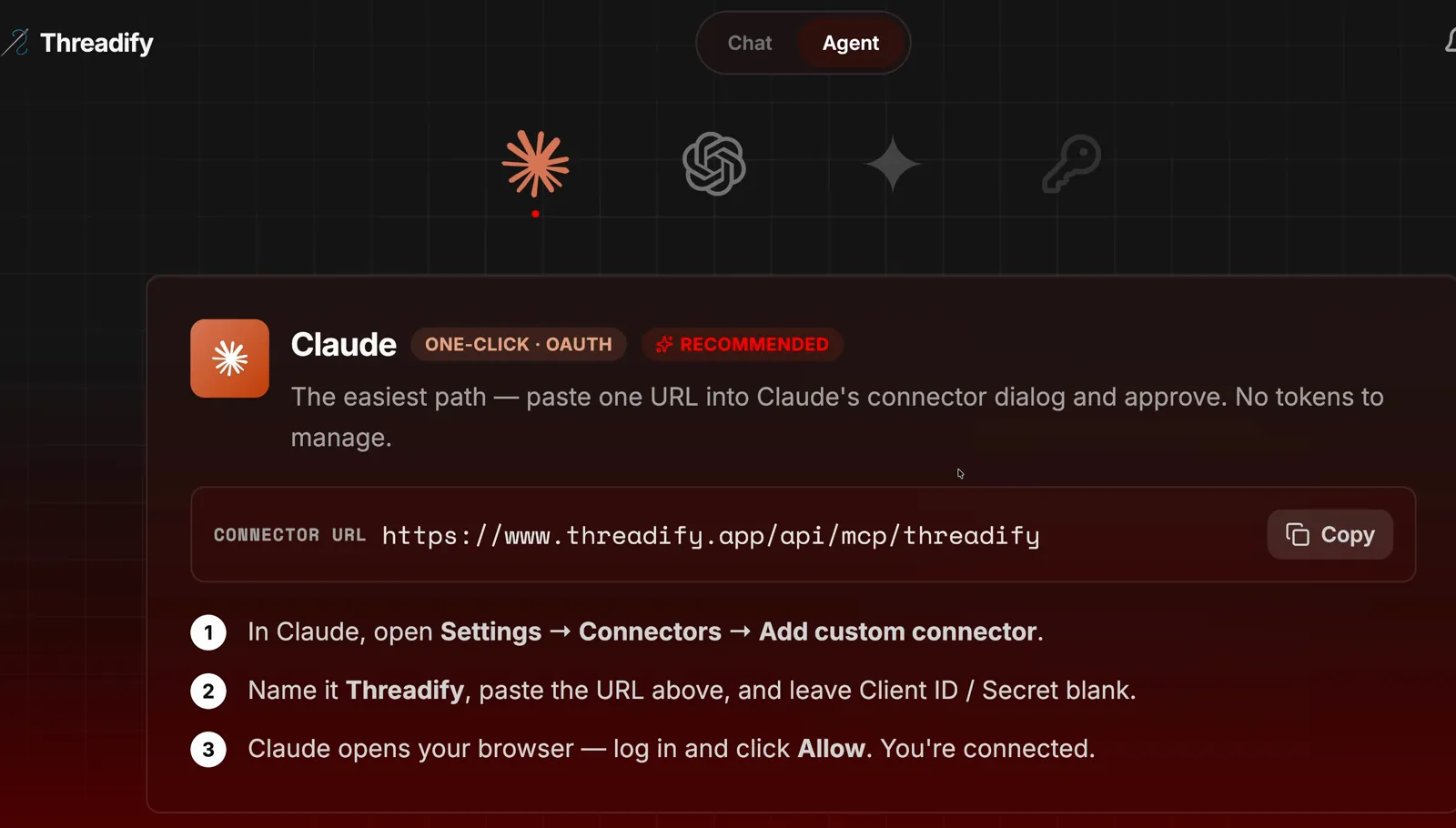
The Agent tab in Threadify, with the Copy button and the three numbered steps on the Claude card.
Step 2: Install the free workflow and start it with one message
One message installs the free workflows and starts Viral This Week, so there's nothing to set up by hand. Type the message in the screenshot below into your agent's message box, exactly as it appears.
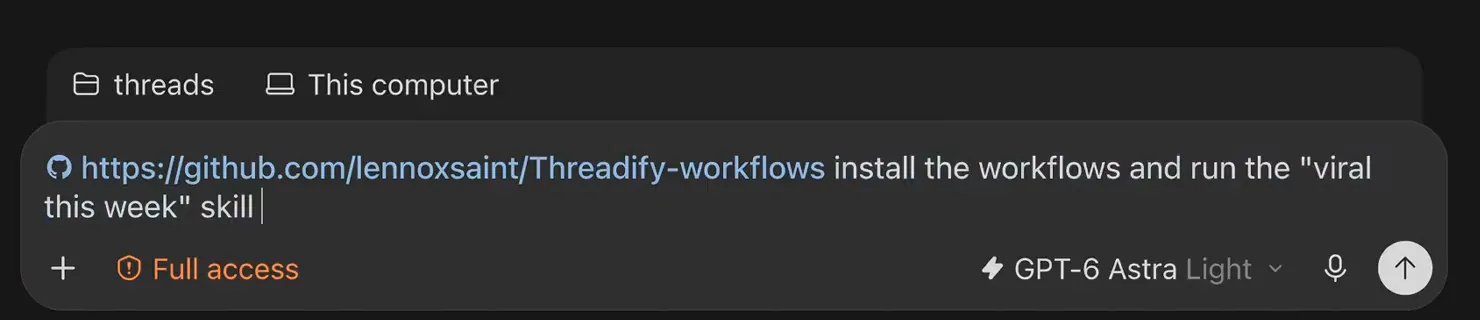
The install message in the agent's message box: the free workflows link plus one plain request to run Viral This Week.
Step 3: Choose what to search for
Your keywords and subreddits decide what the scan looks for, so the results stay inside your niche. The workflow shows you a short form to fill in: three keywords and two subreddits. In the example run, the keywords were AI agents, AI tools for creators and AI content creation, and the subreddits were ChatGPT and AI_Agents.
The scan searches public posts on YouTube, Reddit (top today and rising), TikTok and Threads. Check the planned searches, then click Confirm searches and start scan. The example scan finished with 4 platforms scanned, 10 successful searches and 10 credits charged.
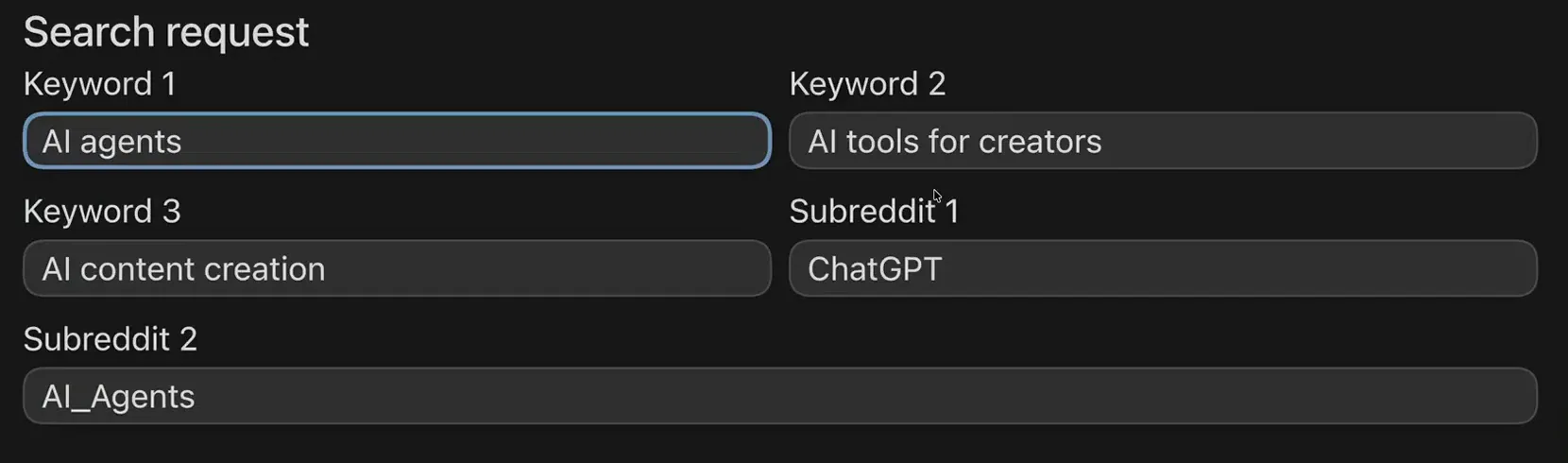
The search form: three keywords and two subreddits are all you fill in.
Step 4: Pick one of three topics worth posting about
You get a shortlist with the reasons behind each topic, so you can see the evidence before you choose. The agent comes back with three candidate topics, each showing how many platforms it turned up on and what kinds of posts are driving it. Use Pick one on the topic you have something real to say about and Reject one on any you'd rather skip, then click Choose topic and explore creator patterns.
The example run's three topics were agent reliability and control (four platforms), always-on assistants (three platforms, with substantial TikTok attention) and reusable Claude skills (two platforms). Always-on assistants was picked, and reusable Claude skills was rejected because so many people already post about it. The report is upfront about Threads, too: "Threads adds topical overlap, not strong popularity evidence."
Try Threadify for free
Write better Threads in less time. Generate, refine, schedule—without the chaos.
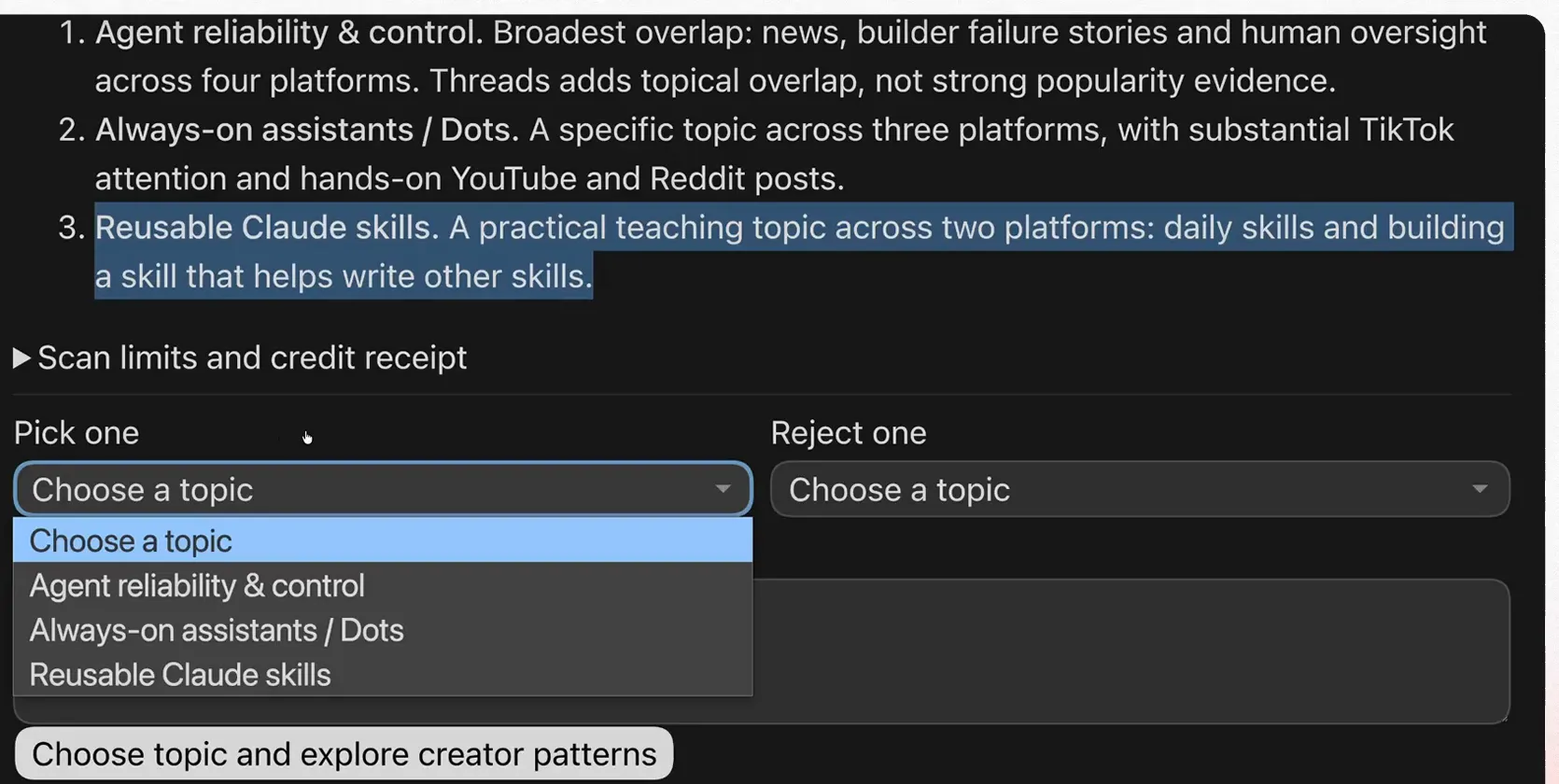
Three candidate topics, each with why it surfaced, and the Pick one and Reject one choices.
Step 5: See how creators doing well with the topic shape their posts
You see how posts that are working on your topic are built before you write a word. The agent reads posts and video transcripts from creators already covering the topic and boils them down into patterns. In the example run, it reviewed two creators' video transcripts and returned three patterns worth studying:
"Introduce the change through a job the viewer recognises."
"Use a concrete test or personal observation as the middle."
"Leave room for a limitation in the ending."
The workflow takes patterns, not the creators' sentences. In the example run, one Reddit post came back as not found, and the agent said so and left it out of the patterns. For more on learning from a post that worked without copying it, see what to do after a thread takes off.
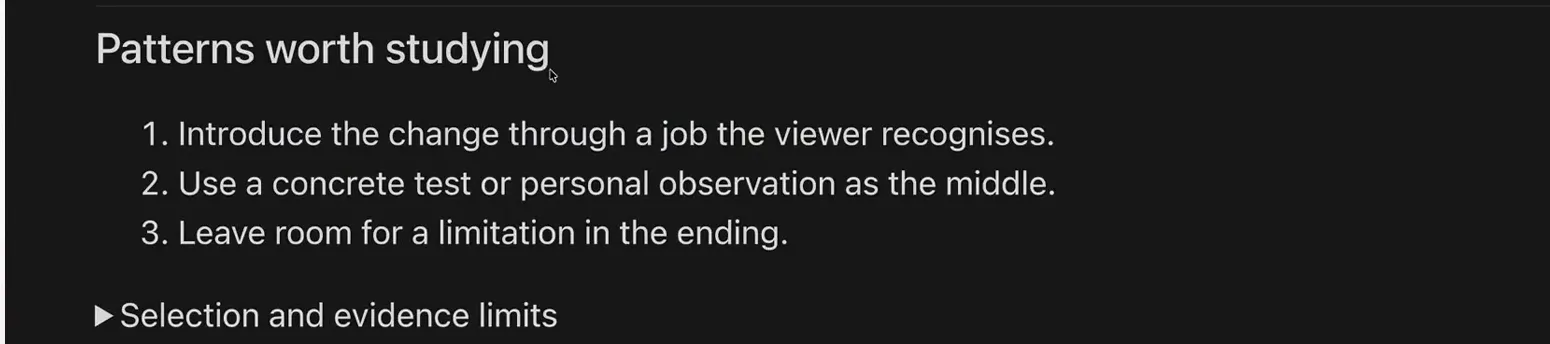
Patterns worth studying: structures to borrow from creators already covering the topic.
Step 6: Add your own take by voice
This is where the trending topic becomes your post, built on something you actually did. Before writing anything, the agent checks your Threadify Brain for anything you've already said about the topic. In the example run it found nothing, so it asked: what do you think about always-on assistants, what's one real task you gave it, what happened, and where did you need to step in? Turn on your agent's voice mode and answer out loud, the way you'd explain it to a friend.
The example run's spoken take described an always-on assistant managing a project over several days, including an early hiccup getting into the testing environment. That kind of detail has to come from you.
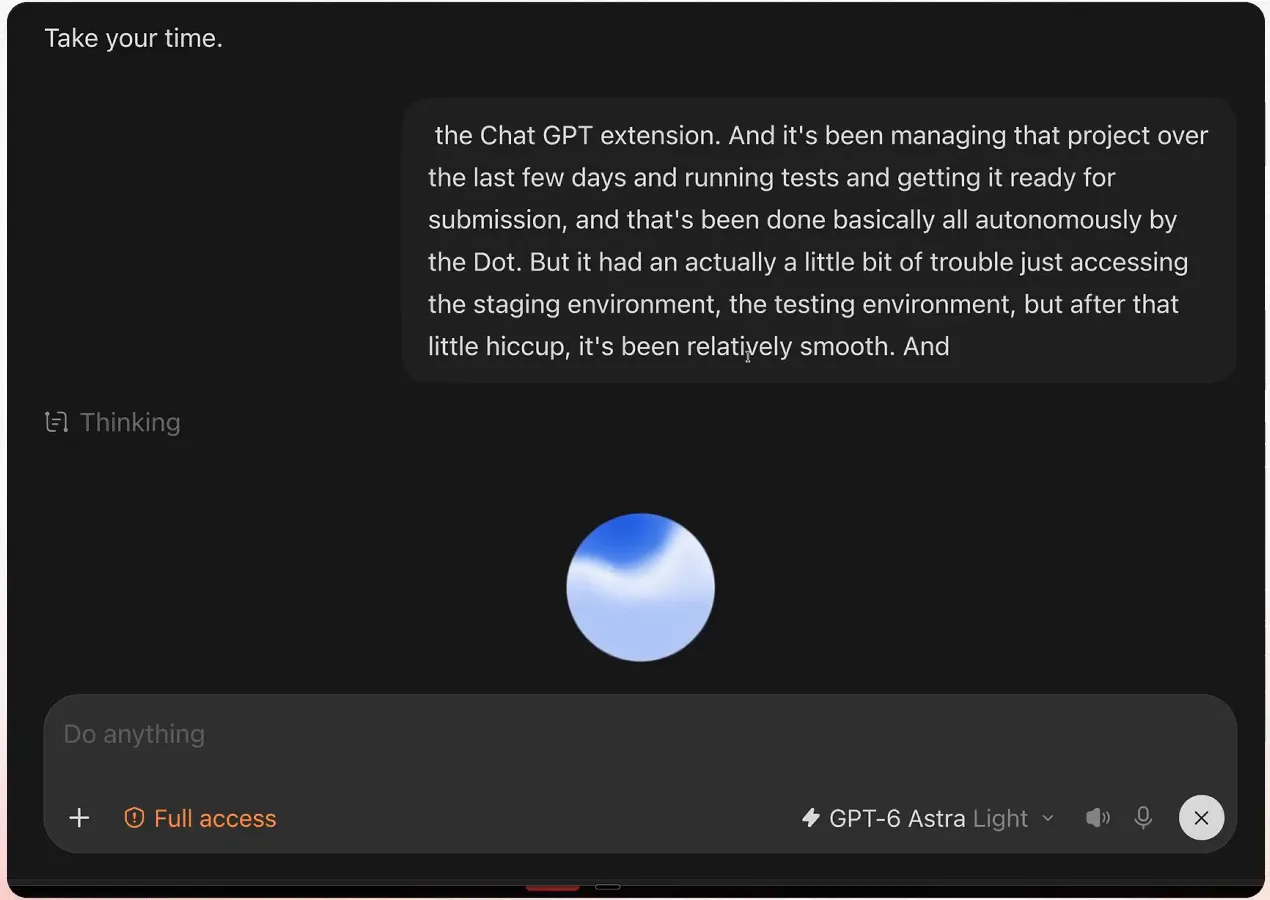
Voice mode in the agent, with the spoken take written out as it's said.
Step 7: Let Threadify write three drafts to choose from
You get three angles on the same idea without writing any of them yourself: a hot take, a how-to and a story. Threadify blends the structure from Step 5 with your take from Step 6. (For why one idea can work in several formats, see the modular thread stack.)
If the first set sounds flat, ask for a stronger version. The example run's first drafts felt "mid", so this was the follow-up:
They're sounding a bit mid. Make them more confident, bold, and concise. Use viral structures and use Opus 5.5 to regenerate them within Threadify this time.
Opus 5.5 is the model the example run picked. Premium models come with the Founder and Operator plans, so on other plans name a model your model picker shows, or leave the model out of the prompt.
The regenerated set arrived in Threadify as three new drafts (hot take, how-to and story), all marked not scheduled.
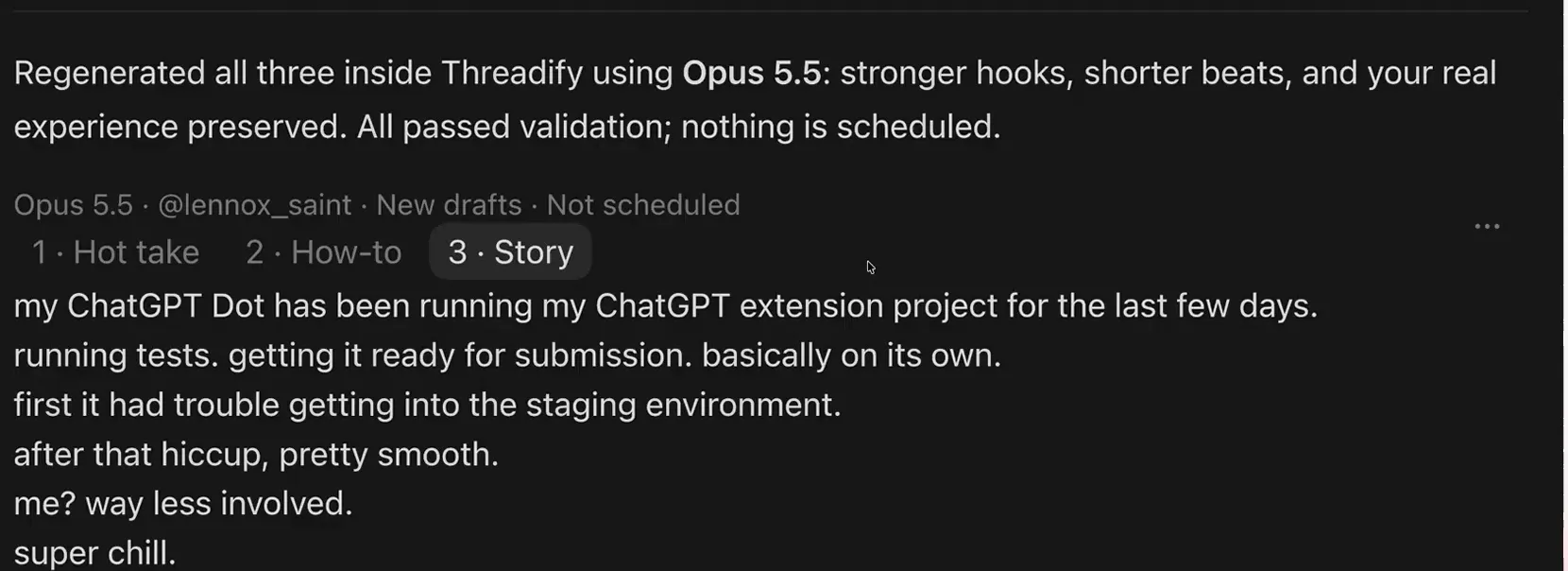
The three regenerated drafts in Threadify, with the story open and nothing scheduled yet.
Step 8: Schedule only the draft you like
The draft that sounds most like you goes on the calendar, and the other two stay ready for later. Tell your agent which one to schedule, the way the message in the screenshot below does, and swap "story" for whichever draft you prefer. If the agent suggests posting times, treat them as a starting point. In the example run, the agent noted its samples were small and called its picks "informed choices, not guaranteed best times". The story was scheduled for Sunday 4 October at 3:00 pm Perth time, the agent verified it against Threadify's calendar, and the hot take and how-to stayed as drafts you can use later in the week.
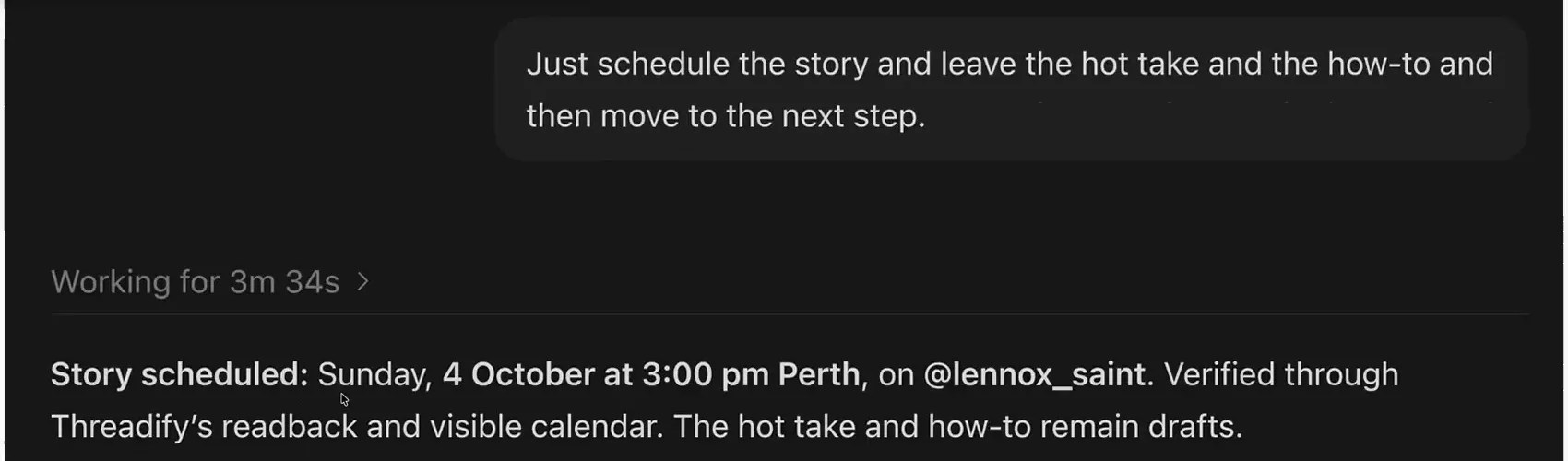
The request to schedule only the story, and the agent's confirmation that the other two drafts stay as drafts.
What to expect from your first trend scan
Scrape Creators is a paid tool that runs on its own credits, separate from Threadify. The Threadify side of the workflow uses your plan's monthly credits.
The scan only sees public posts, and following each platform's rules is up to you.
Threads and X have no trending feed. A topic showing up on Threads tells you people are discussing it there, not that it's popular.
Some sources fail. In the example run, retrieving one Reddit post's details failed, and the workflow reported it and carried on.
Suggested posting times come from small samples, so treat them as estimates.
A scheduled post isn't a published one, and nothing here promises views. The scan shows what your niche is discussing; your take is what gives people a reason to read your post.
If none of the three topics is something you have a real opinion on, don't force it. Run the scan again another week, or find your next post in your own Threads comments instead.
Post your take on this week's topic
Your niche's conversation moves on quickly, so the useful time to add your experience is while people are still discussing it. Open Threadify and connect your AI agent so it can write your three drafts straight into Threadify and schedule the one you pick.
Frequently Asked Questions
Do I have to pay for Scrape Creators to use Viral This Week?+
Yes. The scan runs through Scrape Creators, a paid third-party tool that isn't part of Threadify and runs on its own credits. The Threadify side of the workflow uses your paid plan's monthly credits.
Will this copy other creators' posts?+
No. The workflow pulls patterns from creators' posts, such as how they open or where they put a personal test, not their sentences. The drafts are built on those patterns plus the take you give by voice.
Which AI agents can run this workflow?+
Threadify connects to Claude, ChatGPT and Gemini from the Agent tab. The example run used the ChatGPT desktop app with Scrape Creators added as a plugin, so check that your agent can use Scrape Creators too.
Will Threadify schedule all three drafts?+
No. Threadify writes all three as drafts marked not scheduled. Only the one you tell your agent to schedule goes on the calendar, and the other two stay as drafts.
Why don't the Threads results show what's trending?+
Threads and X have no trending feed, so Threads results show that a topic is being discussed there, not how popular it is. The example report said so: "Threads adds topical overlap, not strong popularity evidence."
Try Threadify for free
Write better Threads in less time. Generate, refine, schedule—without the chaos.